Using the assistant
Conversations with the Internal Technical Assistant are private, one-to-one conversations. Unlike chatting with an internal Kapa project in a Slack channel, they are visible only to the individual user, and to users with access to the project on the Kapa platform.
Source filtering
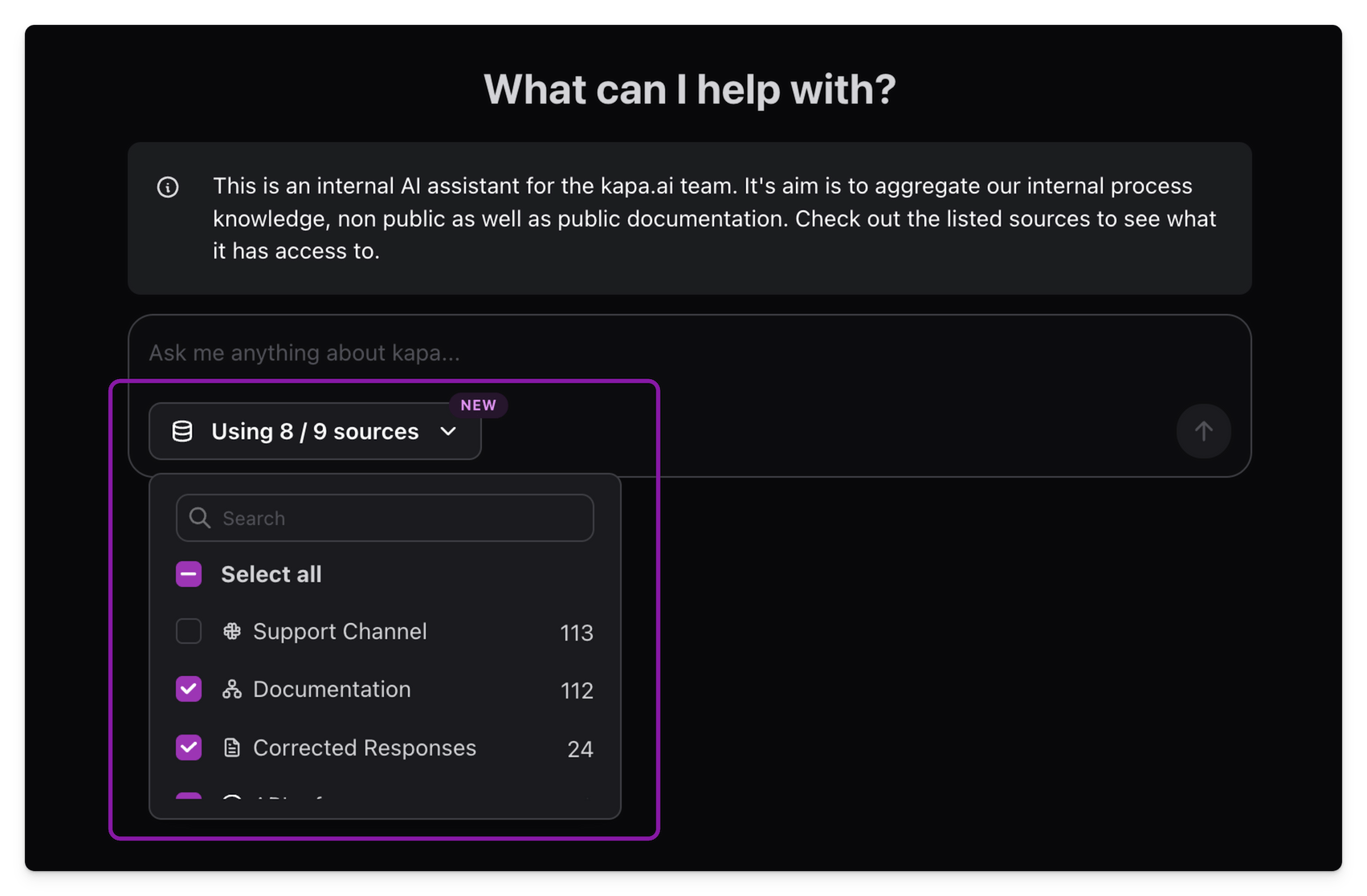
Select which knowledge sources Kapa should use when answering a question:
- Click the sources dropdown menu in the chat interface.
- Use the search box to find specific sources, or browse the complete list.
- Select or deselect individual sources with the checkboxes.
- Use Select all to quickly enable or disable all sources.
Switch styles
When your project has customizations enabled for the Internal Technical Assistant, a Style dropdown appears next to the sources dropdown in the chat input. Selecting a style applies that customization's tone and behavior overrides to the rest of the conversation; picking Default reverts to the project's standard assistant. The selection is reflected in the URL via a customization_id query parameter, so you can share a link that opens the assistant with a specific style preselected.
To make a customization available in this dropdown, turn on Enable in Internal Assistant on the customization in app.kapa.ai. See Use a customization for details.
Attach files
Upload files along with your questions to provide additional context:
- Select the file from your computer (PNG, JPEG, PDF, or text-based formats such as Markdown, TXT, CSV, JSON, and YAML).
- Type your question.
- Send your message.
Kapa uses the uploaded content as additional context when formulating its response. See the full list of supported file types.