Source groups
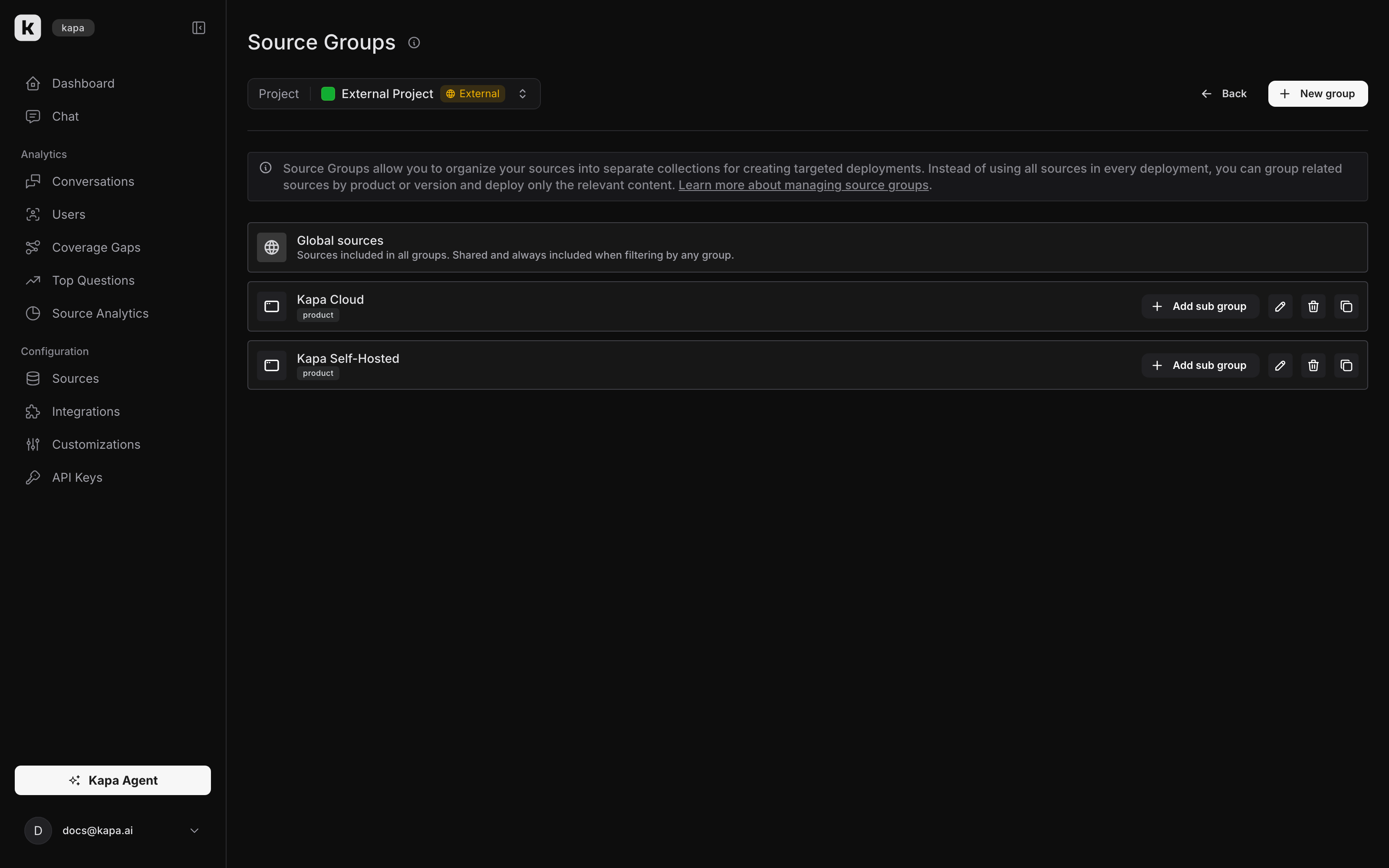
Source groups solve quality issues that arise when Kapa ingests multiple versions of documentation for the same product or multiple similar products. Without source groups, you may experience:
- Mixed citations: Kapa might cite a different version than the one the user asked about
- Reduced answer quality: Retrieval gets cluttered by similar chunks from different versions, reducing the diversity and relevance of answers
Source groups allow you to organize your sources and deploy AI assistants with access to specific subsets of sources, ensuring users receive targeted, relevant answers.
What are source groups
Source groups are labels that you can assign to one or more sources to categorize them logically. You can configure an integration to only access sources from specific groups; see Use source groups for the per-integration configuration.
Source groups organize sources within a project. To understand when to use source groups versus creating separate projects, see Projects vs. source groups.
This filtering capability allows you to:
- Deploy specialized versions of your assistant for different products or audiences
- Ensure users only receive information from relevant sources
- Maintain a single Kapa project while serving different use cases
Source groups are designed to let you organize sources by products (when you have documentation for multiple products) or by versions (when you need to maintain documentation for different software versions).
Hierarchical source groups
Source groups can be organized in a two-level hierarchy, allowing you to create parent groups with child subgroups. Sources assigned to a parent group are automatically inherited by all its child groups.
For example, you can structure your groups like this:
- Product A
- Version 1
- Version 2
- Product B
- Sub-product X
- Sub-product Z
In this structure:
- Sources assigned to "Product A" are available to both "Version 1" and "Version 2" subgroups
- Sources assigned specifically to "Version 1" are only available to that subgroup
- Each subgroup has access to both its parent's sources and its own sources
Global sources
There's a special "Global" group that exists by default. Sources assigned to the Global group are automatically inherited by all other source groups in your project. This is useful for common resources like:
- General company documentation
- API reference that applies to all products
- Common troubleshooting guides
Example hierarchy with global sources:
Global (inherited by all groups)
Product A
├── Version 1
└── Version 2
Product B
├── Sub-product X
└── Sub-product Z
In this setup, sources in the Global group are available to all products and their subgroups, while maintaining product-specific separation.
Example: How source group filtering works
Consider this setup with seven sources organized in a hierarchy matching the structure from the previous section:
| Source | Description | Assigned group | Group ID |
|---|---|---|---|
| Source A | General API docs | Global | a1b2c3d4-e5f6 |
| Source B | Product A overview | Product A (parent) | b2c3d4e5-f6a7 |
| Source C | v1.0 release notes | Product A > Version 1 | c3d4e5f6-a7b8 |
| Source D | v1.0 API reference | Product A > Version 1 | c3d4e5f6-a7b8 |
| Source E | v2.0 release notes | Product A > Version 2 | d4e5f6a7-b8c9 |
| Source F | v2.0 migration guide | Product A > Version 2 | d4e5f6a7-b8c9 |
| Source G | Product B docs | Product B | e5f6a7b8-c9d0 |
When you configure an integration with sourceGroupIDsInclude: ["c3d4e5f6-a7b8"]
(Product A > Version 1):
| Source | Available? | Reason |
|---|---|---|
| Source A | ✅ Yes | From Global group (inherited by all groups) |
| Source B | ✅ Yes | From Product A parent group (inherited by Version 1) |
| Source C | ✅ Yes | Specifically assigned to Version 1 subgroup |
| Source D | ✅ Yes | Specifically assigned to Version 1 subgroup |
| Source E | ❌ No | Only assigned to Version 2 subgroup |
| Source F | ❌ No | Only assigned to Version 2 subgroup |
| Source G | ❌ No | Only assigned to Product B (different product) |
Result: The integration can access four out of seven sources. It includes global sources, parent group sources, and Version 1-specific sources, while excluding Version 2-specific documentation and Product B documentation.
Creating and managing source groups
To manage source groups:
- Navigate to the Sources view in your Kapa project
- Click the Manage groups button
- From the source groups management page, you can:
- Create new parent groups or subgroups
- Edit existing group names and hierarchies
- Delete groups that are no longer needed
- Copy group IDs for use in your integrations
When creating groups, consider your product structure and how users interact with different parts of your documentation.
Assigning sources to groups
To assign a source to one or more groups:
- Go to Sources in your project.
- Select the source, then open Advanced.
- Turn off Global under Source groups.
- Select Add source group, then select the group.
Repeat the last step to assign the source to more than one group.
Best practices
When organizing sources with groups:
- Create groups that align with how you'll filter content for different widget deployments
- Start simple: Begin with a few broad groups and refine as needed
- Most organizations use groups to separate products or versions
[!TIP] Only use source groups if you need to. Kapa can usually handle product differentiation well without the need to define source groups. Only use source groups if you see clear patterns in conversations that Kapa is misunderstanding which product or version that the user is talking about.
Changing groups safely
Modifying source group assignments can break existing integrations:
- Deleting a referenced group: If you delete a group that's referenced in an integration configuration, that integration stops working
- Reassigning sources between groups: Changes to source assignments are reflected immediately on all existing integrations using those groups
- Moving sources out of groups: If you move a source from one group that's referenced in an integration to another group, that integration may no longer have access to content in that source
Before making changes to source groups:
- Review which integrations reference the groups you plan to modify
- Update integration configurations if needed
- Test affected integrations after making changes
Once your groups are set up, continue with Use source groups to scope your integrations to them.