Set up Kapa with your agent
Your agent connects a knowledge source to Kapa, checks that its content is searchable, and helps you put it to use. If you prefer to go through each step yourself, follow Index a source in the dashboard instead.
By the end of this tutorial, you will have:
- A knowledge source in your Kapa project, with its content searchable.
- A real query returning results from that content.
- Optionally, your knowledge deployed, for example as a Website Widget or a Slack Bot.
Before you start
You need:
- A Kapa account, or create one when the agent asks.
- Permission to edit the project's sources and integrations.
- An agent: Claude Code, Codex, Cursor, Gemini CLI, or opencode, or a chat assistant such as ChatGPT or Claude.
- Access to the source you want to connect, such as a Confluence token.
Most of the supported data sources can be set up this way, including web crawling, GitHub, Zendesk, Confluence, Jira, Notion, Slack, Discord, Google Drive, and S3. Set up the rest in the dashboard.
Copy the prompt
Paste this prompt into your agent. It handles installation, source configuration, ingestion checks, and a test query, asking you for sign-in, source access, and any choices it needs.
ChatGPT and Claude cannot install the plugin themselves. Connect Kapa first, as described in If your agent needs help connecting, then paste the prompt.
Read and follow https://docs.kapa.ai/agent-onboarding/SKILL.md to set up my Kapa project.
Answer the agent's questions
From here, the agent leads, and you answer. This section walks through what it asks at each stage, so you know what to have ready.
Sign in to the MCP server
The agent installs the Kapa plugin if it is not connected yet, sends you to sign up if you have no account, and then checks that you are signed in to the Kapa platform MCP server, so it can reach the platform on your behalf. If you are not, it tells you how to sign in. If you have more than one project, it asks which one to set up, and it tells you what that project already holds before it changes anything.
Choose what to ingest
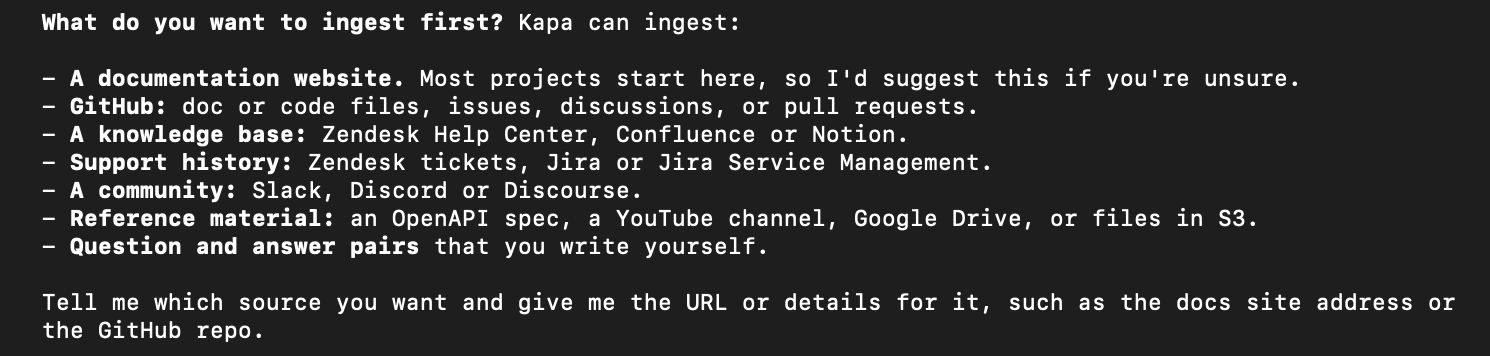
Next, the agent lists what Kapa can ingest and asks what you want to start with. Reply with the source, like the URL of your documentation site.
Wait for your source to ingest
The agent then works out the source's configuration with you, such as which pages to crawl, and starts ingesting once you give it the go-ahead. Ingestion usually takes a couple of minutes.
To follow its progress, ask the agent for the status of your source, including how many items are already deployed. Or open app.kapa.ai and navigate to Sources (under Configure in the sidebar): the source row shows the deployed count ticking up, and the spinner disappears once ingestion is finished.

Test your index with a few queries
Next, you test searching the source you just indexed. The agent asks you for a question your content should answer, or suggests one, and shows you the chunks that come back and the source of each one. Ask a few more questions to check other parts of your content.
The platform MCP server lets your agent search with the same retrieval tool that the hosted MCP server and the HTTP API expose, which are how you usually query your index in production.
If the results are thin or wrong, the agent says so rather than declaring success, and points to the likely cause, usually a misconfigured source.
Deploy your index (optional)
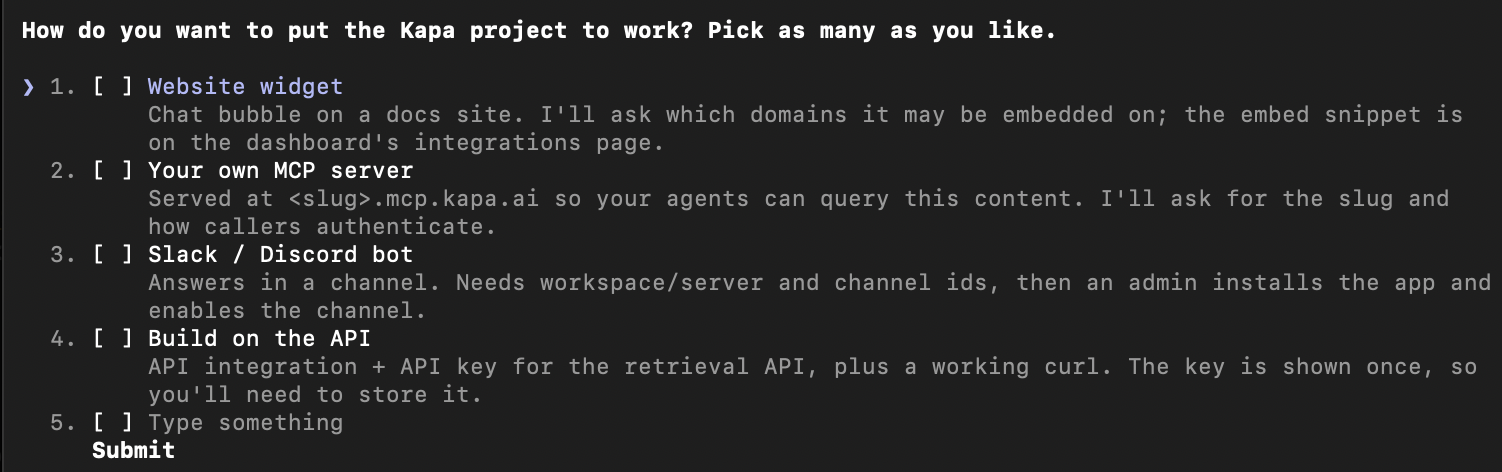
Finally, the agent asks whether you want to deploy your index. Deploying connects it to the places where it gets used: either a Prebuilt Agent, such as a website widget or a Slack bot, that answers your users directly, or a way for your own agents to query it, through a hosted MCP server or the HTTP API. You can pick more than one.
If your agent needs help connecting
The prompt has your agent install the Kapa plugin, which connects it to the Kapa platform MCP server and teaches it how to set up each source type. Chat assistants cannot install it themselves, so connect Kapa first, then paste the prompt. Use these steps if the agent gets stuck.
- Claude Code
- Codex
- Cursor
- ChatGPT
- Claude
- Gemini CLI
- opencode
- Other clients
Inside Claude Code:
/plugin marketplace add kapa-ai/kapa-plugin
/plugin install kapa@kapa
Or from your terminal:
claude plugin marketplace add kapa-ai/kapa-plugin
claude plugin install kapa@kapa
Inside Codex, run /plugins, search for Kapa, and install it.
Or from your terminal:
codex plugin add kapa@openai-curated-remote
Inside Cursor's agent chat:
/add-plugin kapa
Or install the plugin from its Cursor Marketplace listing.
Add Kapa from its ChatGPT plugin directory listing, then paste the prompt.
In Claude, navigate to Settings > Connectors, click Add custom
connector, name it Kapa, set the server URL to https://mcp.kapa.ai/mcp,
and click Add. Click Connect and complete the Kapa sign-in, then paste
the prompt. On a Team or Enterprise plan, an organization owner adds the
connector under Admin settings > Connectors first; the
ChatGPT and Claude example
walks through it.
gemini mcp add kapa https://mcp.kapa.ai/mcp --transport http
Install our skills from kapa-ai/kapa-plugin.
Add the server to opencode.json:
{
  "$schema": "https://opencode.ai/config.json",
  "mcp": {
    "kapa": {
      "type": "remote",
      "url": "https://mcp.kapa.ai/mcp",
      "enabled": true
    }
  }
}
Install our skills from kapa-ai/kapa-plugin.
Any MCP client takes the server directly:
{
  "mcpServers": {
    "kapa": {
      "url": "https://mcp.kapa.ai/mcp"
    }
  }
}
Install our skills from kapa-ai/kapa-plugin.
Next steps
- Connect an AI agent to your knowledge: hand your own agent search over your index as an MCP tool, in one API call.
- Hosted MCP servers: give your own users an MCP server over your content.
- Retrieval API: query your project from your own code.
- Data sources: what Kapa can ingest.