Extract clean content
The Parse step turns each crawled page into markdown, and its configuration is a selection job: you are selecting and removing elements from the page's HTML until Kapa's converter can turn it into clean markdown. The parse preview on the right shows the result for every page, and you keep going until that content renders as clean markdown: all of the text, none of the clutter.
Before you start
- You have a Website crawl source with a completed preview crawl, so the Parse step has pages to convert.
Find the main content element
- Open one of your pages in the browser, right-click the main content, and choose Inspect.
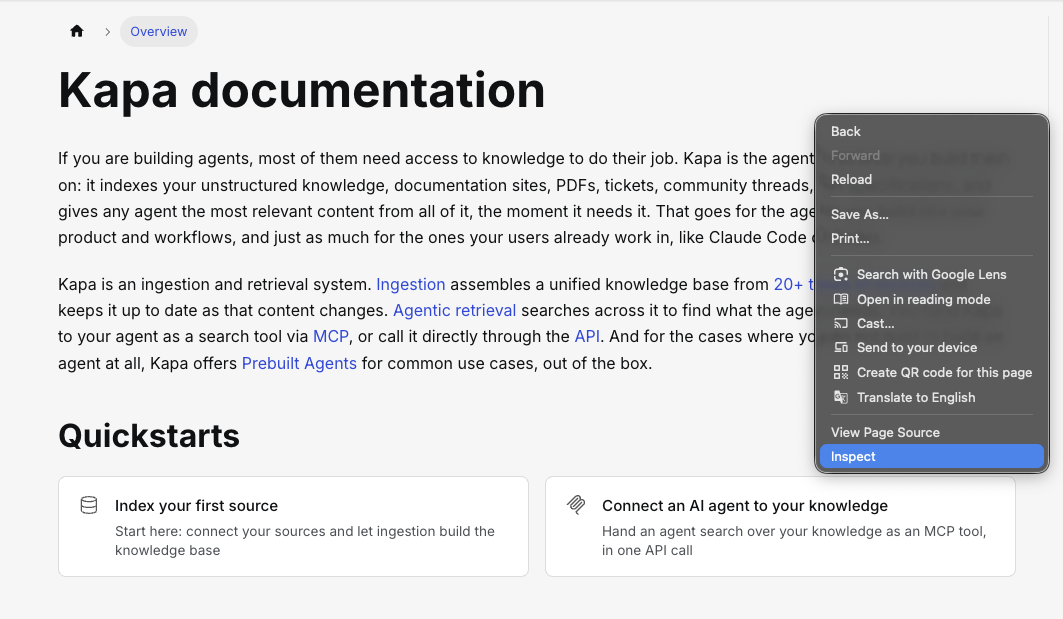
- In the developer tools, walk up the element tree until you find the element that encloses all of the content and as little else as possible; whatever else it drags in, the exclusion options below can remove. Look for a
<main>or<article>tag, or a container with a class likecontentortheme-doc-markdown; on most documentation sites,mainorarticleis the answer.
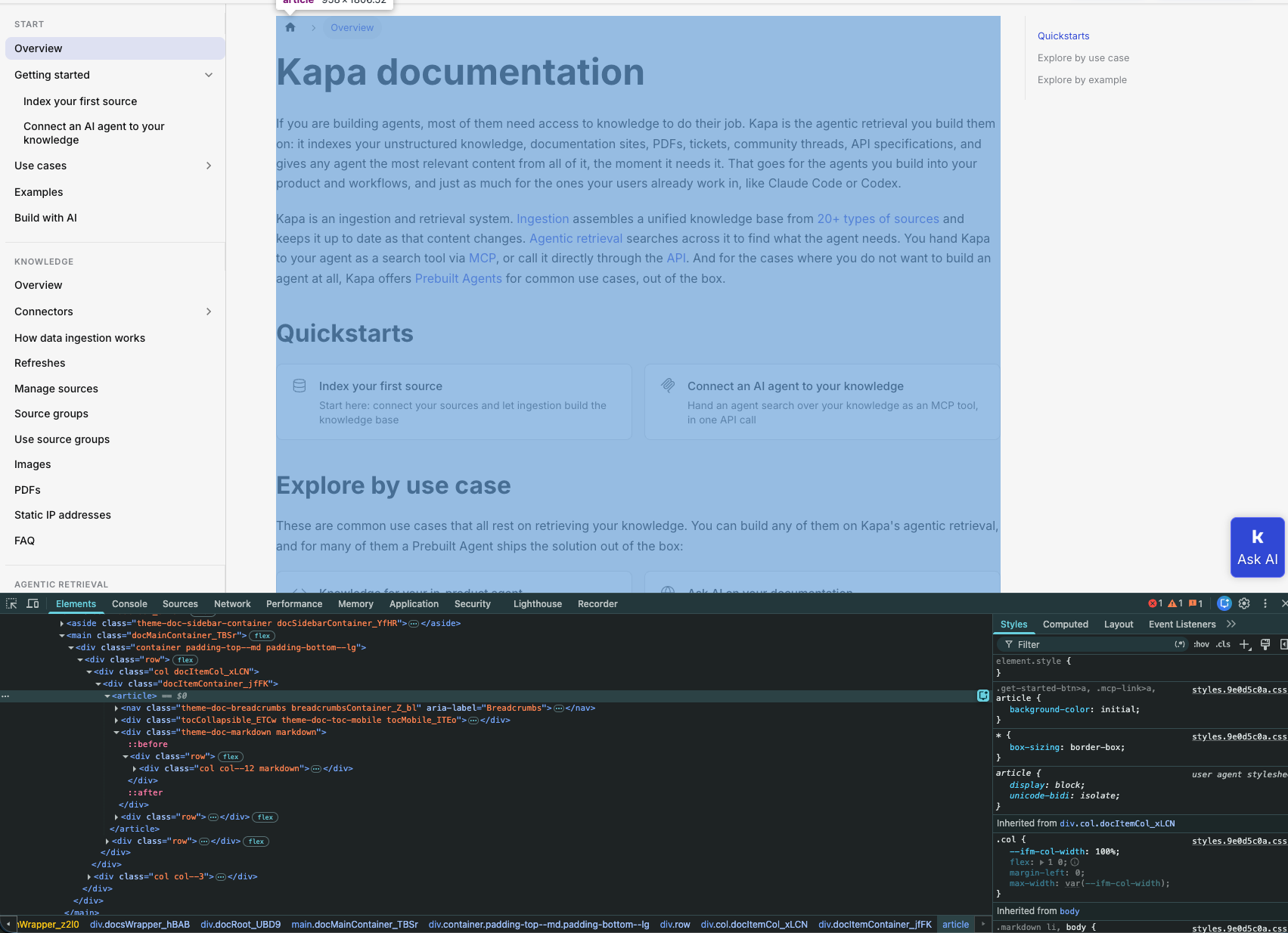
One page is usually enough to inspect: websites are generated by the same build system or theme for every page, so a selector that is right for one page is largely right for all of them.
Test it in the parse preview
- On the Parse step, enter the selector into Content selector. The preview converts as you type.
- Page through the previewed pages with Previous page and Next page and confirm the selector holds across page types: an article, an index page, an API page.
- If a page comes up empty, the selector did not match there. Try a more general selector.
- Use the Raw tab to compare the converted markdown against the unprocessed page when you suspect content is missing.
Remove elements that clash with the markdown
Even with the right outer content selector, stray elements often survive inside it and clash with the markdown. Some are visible clutter such as navigation, banners, or feedback widgets; others are invisible on the rendered page, such as a hidden table of contents label, and only show up in the converted output. Here, an element renders into the top-level header:
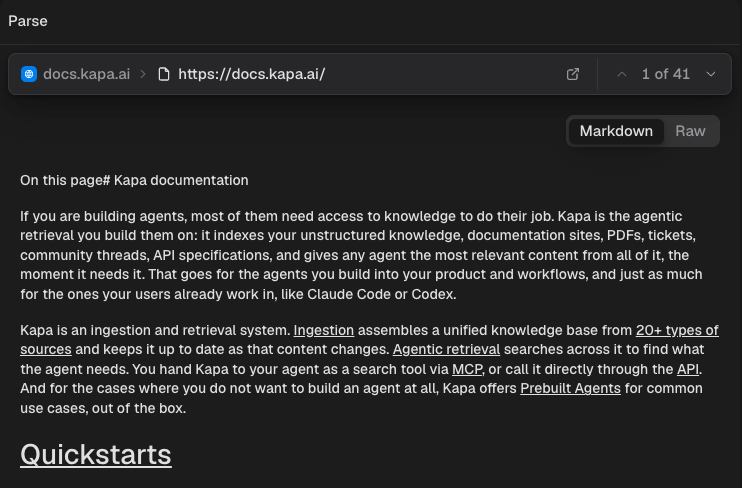
Remove them under the Advanced tab:
- Add the CSS selectors of unwanted elements to Exclude selectors, for example
.breadcrumbs. - Add unwanted CSS classes to Exclude classes, for example
sidebar-nav.
Find the offending element's class or selector the same way as the content selector: inspect it in the browser. After the exclusion, the preview re-converts and the clash is gone:
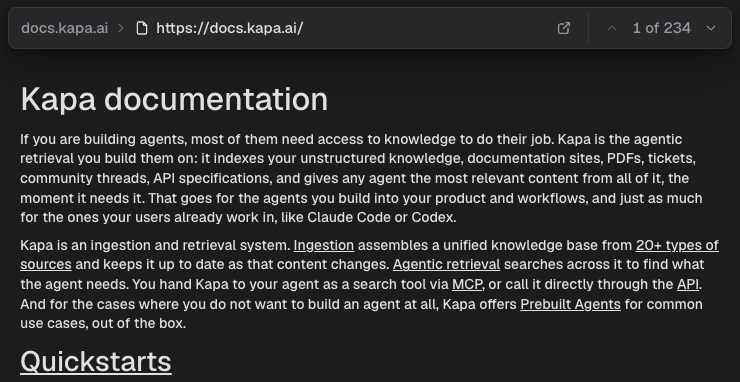
Verify
Page through the preview once more: every page shows complete content as clean markdown, with no menus, sidebars, footers, or stray fragments. When it does: on a new source, publish it with Deploy; on an existing source, apply the new configuration with Re-deploy.
Related
- Parse configuration reference: all parse options in one place.
- Control which pages are crawled: the step before this one, getting the right pages into the crawl.
- Index your first source: the end-to-end walkthrough of setting up a Website crawl source.