Control which pages are crawled
Configuring a crawl is never done blind: it goes hand in hand with previews that show you how the configuration actually behaves. The workflow is a loop: run a preview, inspect what was included and what was excluded, refine the configuration, and preview again. A few rounds are normal. You are done when the crawl includes every page you want and nothing else.
Before you start
- You have opened the Crawl step of a Website crawl source. A newly created and an existing, deployed source work the same way.
Run a first preview
- Enter your Start URLs. By default they also define the crawl's scope: only pages whose URL contains one of the start URLs are included. So prefer the deepest URL that still contains everything you want;
https://example.com/docs/keeps the crawl inside the documentation, wherehttps://example.comadmits the whole site. - Click Preview and let it finish.
- Inspect the result: the Included tab lists the pages the crawl kept, grouped by URL path, and the Excluded tab lists everything left out, each with the reason.
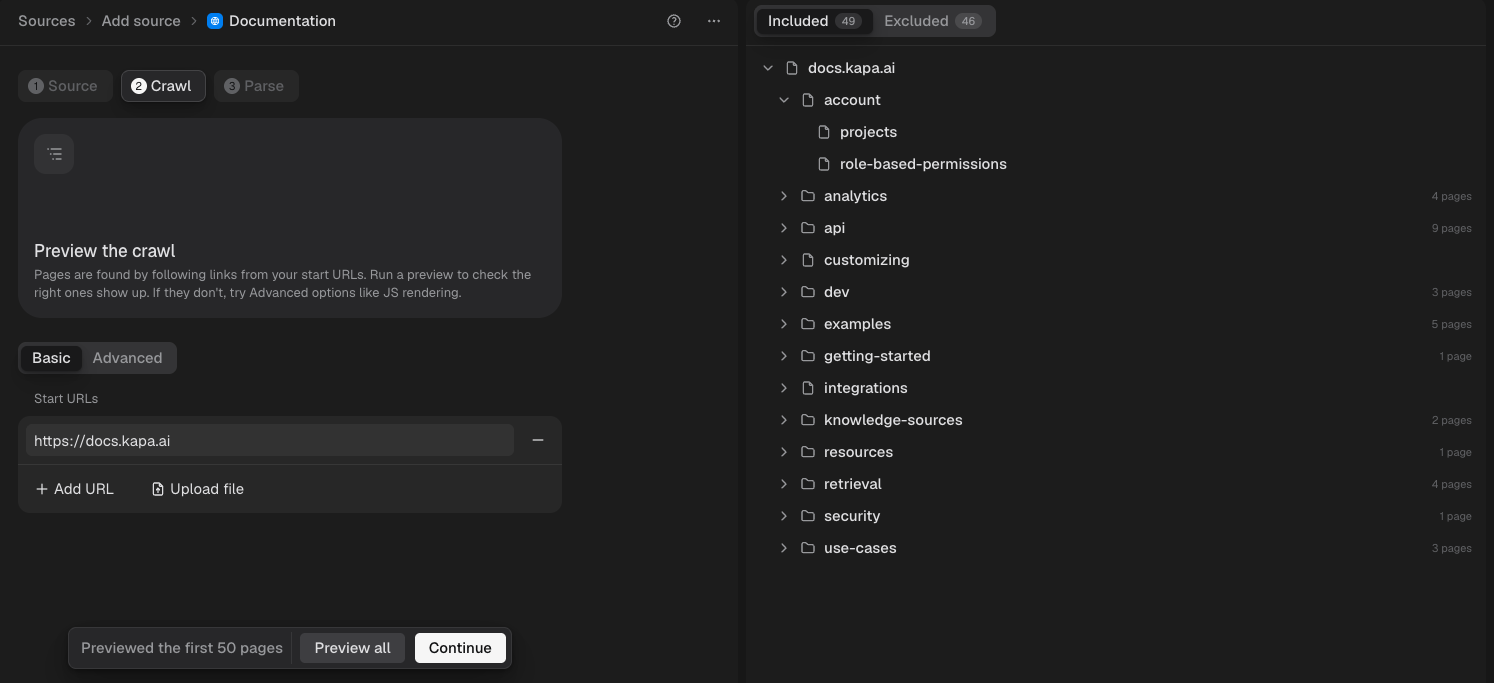
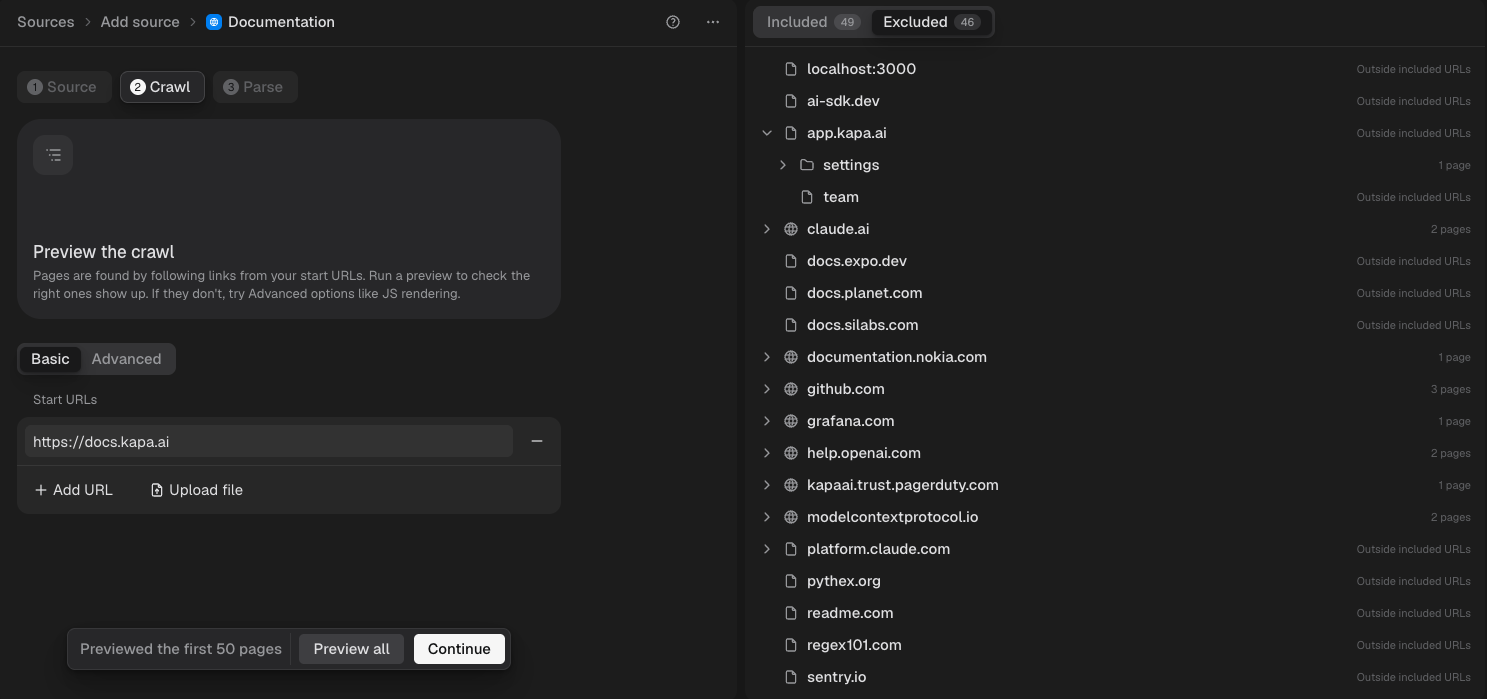
If the preview finds nothing or far too little, the site probably blocks automated traffic or renders its content with JavaScript. Try Use proxy under Advanced first and preview again; if that does not help, enable Render JavaScript, which is heavier and makes crawls much slower. The troubleshooting section covers these cases and the other exclusion reasons.
Refine until the crawl is right
You seldom want absolutely everything the crawler finds, so refining usually means narrowing. Adjust under the Advanced tab, then run Preview again and compare both tabs; repeat until the result is right.
The loop is faster than it sounds, because a preview does not need to finish: as soon as the pages coming in show that the configuration is wrong, click Stop, adjust, and start the next preview. Stopping also unlocks the configuration, which cannot be edited while a crawl runs. By default a preview stops after the first 50 pages; Preview all removes the cap when 50 pages are not enough to judge the configuration, which can happen on large sites.
The tools for refining:
- Cut unwanted pages with Exclude URLs. Typical cuts are old versions (
/v1/), other locales (/de/,/ja/), and generated pages such as tag or search listings. Exclude URLs from download is the softer variant: the crawler still fetches these pages and follows the links on them to discover more pages, but the pages themselves are not ingested into your knowledge base. Use it for pages that link to the real content but have none of their own, such as index or overview pages. Finally, Exclude extensions cuts by file type. - Narrow with Include URLs when exclusions are not enough. Once set, only matching pages are crawled, and the start URLs no longer scope anything, so keep the patterns specific: a bare
/docs/also matches that fragment on other domains the crawler encounters. - Add missing pages. Pages that no crawled page links to stay invisible to the crawler. Enable Crawl sitemap so the sitemap supplies them (add non-standard locations under Sitemap URLs), or add them as extra Start URLs, for many at once with Upload file.
- Switch a pattern field from Text to Regex when you need one pattern for a whole family of URLs, for example
/v[0-9]+/to exclude every numbered version at once.
These are the most common tools, but there are more, such as filtering pages by their content or by publish date. Every option is described in the crawl configuration reference.
Verify
Run a final Preview and read both tabs one more time: the Included tab lists every page you want, and nothing on the Excluded tab surprises you. If you are unsure the configuration holds beyond the first 50 pages, run Preview all once to check against the whole site. When you are confident the crawl behaves correctly: on a new source, move on to the Parse step to extract clean content from your pages; on an existing source, you can also just apply the new configuration from here with Re-deploy.
Related
- Crawl configuration reference: every option with its exact behavior.
- Troubleshooting: what each exclusion reason means and what to do about it.
- Extract clean content: the next step once the right pages are crawled.
- Index your first source: the end-to-end walkthrough of setting up a Website crawl source.