Web Crawling
Kapa's web crawler turns any public website into a knowledge source: documentation, tutorials, blogs, changelogs, and any other web content. It crawls the site, extracts the content of each page as clean markdown ready for Kapa's index, and, once configured, refreshes itself every day. It is also highly configurable: you control exactly which pages are crawled and which parts of each page are indexed.
That control lives in two configurations, and this page documents both: the crawl configuration decides which pages are downloaded, and the parse configuration decides which parts of each page are kept as content. Previews let you test both before anything is published. For a guided, end-to-end setup, follow Index your first source; for the design reasoning behind crawling and reviews, see How data ingestion works.
Data ingested
When you connect a website, the following data is ingested:
- Page URLs
- Page titles and main content, converted to markdown
- PDF files linked from crawled pages, if enabled (see PDF documents)
- Images that carry useful information, such as screenshots and diagrams (see Image indexing)
Source settings
The first step of the source page, Source, holds the settings shared by all source types:
- The source name
- A title prefix, prepended to every item title from this source
- Source groups
- An internal data flag, marking the source's content as internal-only
- PII masking
All of them except the source name live under the Advanced tab.
Crawl configuration
The Crawl step decides which pages are downloaded. The Basic tab holds the start URLs; everything else lives under Advanced.
Start URLs
| Option | Description |
|---|---|
| Start URLs | The pages the crawler begins from. At least one is required. By default, the start URLs also define the crawl's scope: only pages whose URL contains one of the start URLs are included, which is what keeps a crawl on your site. |
| Upload file | Instead of entering start URLs one by one, upload a .txt file with one URL per line. Useful for crawls with many entry points. |
General
| Option | Description |
|---|---|
| Use proxy | Route requests through rotating proxies. Enable this if the site blocks or rate-limits requests from Kapa's servers. |
| Render JavaScript | Load pages in a headless browser so JavaScript-rendered content becomes visible. Enable this only when the site needs it (for example a single-page application), as it makes crawls significantly slower. |
| Crawl sitemap | Discover pages through the site's sitemap in addition to link-following. Useful when pages are not reachable through links alone. Not available with more than one start URL, since a sitemap describes a single site. |
| Sitemap URLs | Explicit sitemap locations, for sitemaps that Kapa cannot discover automatically through robots.txt or standard paths such as /sitemap.xml. Leave empty to use automatic discovery. |
| Ignore URL parameters | Treat URLs that differ only by their query parameters as one page. Enable this when the same content is reachable under many parameter variants, for example tracking parameters or view options. |
| Minimum publish date | Only ingest pages published on or after this date. The date is read from a datePublished field in the page's application/ld+json block or from the article:published_time meta tag. Pages that do not declare a publish date are always kept. Useful for skipping outdated posts on frequently updated sites such as blogs. |
URL filtering
Every discovered URL passes through these filters. By default, each pattern is matched as a literal substring anywhere in the URL; switch a field from Text to Regex to use regular expression syntax instead. For when to reach for which filter, see Control which pages are crawled.
| Option | Description |
|---|---|
| Include URLs | Only crawl pages whose URL matches at least one of these patterns. |
| Exclude URLs | Skip pages whose URL matches any of these patterns. Exclusions take precedence over inclusions. |
| Exclude URLs from download | Crawl these pages to discover the links on them, but do not ingest the pages themselves. Useful for index or overview pages that link to real content but contain none themselves. |
| Exclude extensions | Skip URLs whose path ends with one of these file extensions, for example .csv. |
When Include URLs is empty, the crawl is automatically scoped to pages whose URL contains one of your start URLs. As soon as you add an include pattern, that default is replaced entirely: only pages matching your patterns are crawled. If you add /docs/ as an include pattern, make sure it cannot match pages on other domains you do not want, and add your own domain to the pattern if needed.
Files
| Option | Description |
|---|---|
| Crawl PDF files | Also download and ingest PDF files linked from crawled pages. HTML pages are always crawled. See PDF documents for how Kapa processes them. |
Selectors
These options filter whole pages based on their HTML content, after download. They accept CSS selectors or XPath expressions (XPath is detected by a leading // or .//).
| Option | Description |
|---|---|
| Include selectors | Only ingest pages that contain all of these selectors. Useful for restricting a crawl to pages with a particular structure, for example only pages that contain an article element. |
| Exclude selectors | Skip any page that contains any of these selectors. Note that this drops the entire page; to remove an element from within a page, use the exclusion options on the Parse step instead. |
| Wait for selectors | Wait for these selectors to appear before capturing the page. Only applies when Render JavaScript is enabled; use it when content loads asynchronously after the initial render. |
Parse configuration
The Parse step controls how each downloaded page is converted to markdown. The crawl always downloads each page's full HTML; the parse configuration selects the parts of it that are the actual content, and excludes the rest, such as navigation, sidebars, and footers. The Basic tab holds the content selector; the exclusion options live under Advanced. For the workflow of getting every page to render as clean markdown, see Extract clean content.
| Option | Description |
|---|---|
| Content selector | The element containing the page's main content; everything outside it is discarded. Required. Accepts a CSS selector or an XPath expression; a comma-separated list of CSS selectors is allowed, and the first one that matches is used. On most documentation sites, main or article works. Pages where the selector matches nothing are skipped as empty. |
| Exclude selectors | Remove elements matching these CSS selectors from the selected content, including their children. For example .breadcrumbs. |
| Exclude classes | Remove elements carrying these CSS classes, including their children. For example sidebar-nav. |
| Exclude wrapper classes | Remove elements carrying these classes but keep their children. Useful for wrapper elements, such as tab panels, whose content you want without the wrapper markup around it. |
Deployed pages
The source page shows what is currently deployed to your knowledge base. The Deployed pane lists every deployed page in a tree grouped by URL path, with search and an alternative flat list layout.
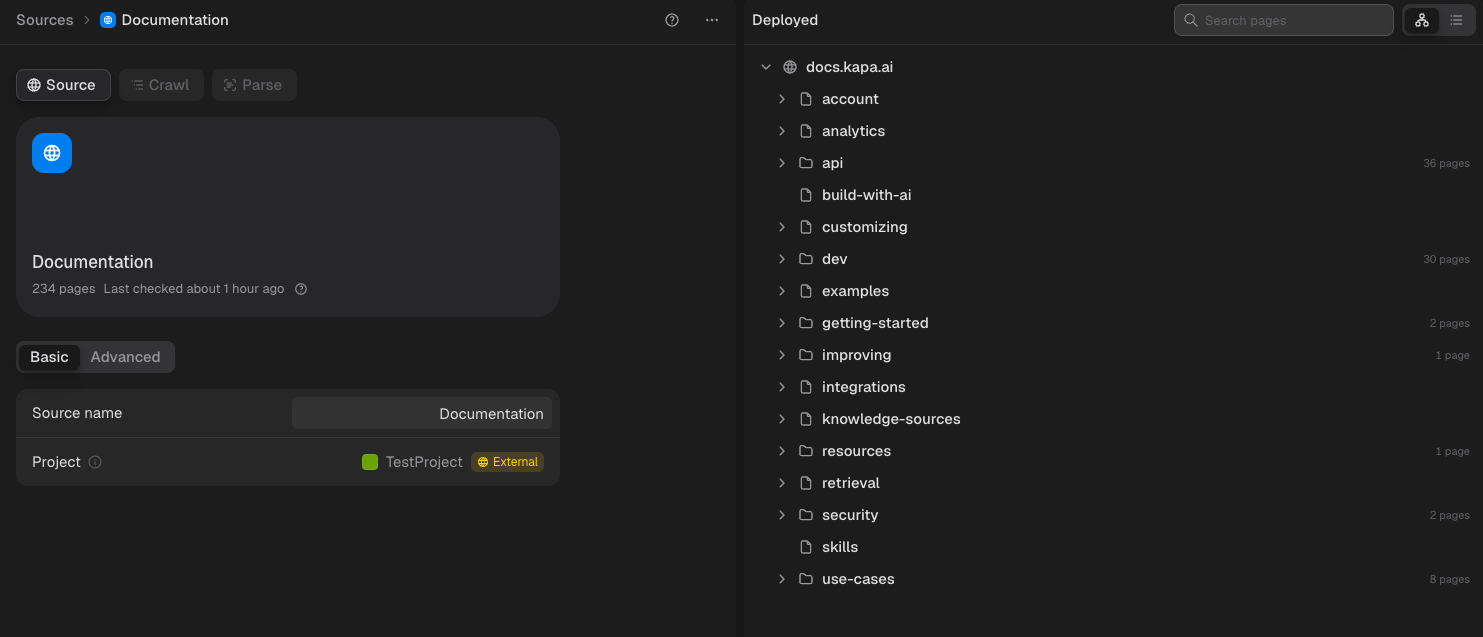
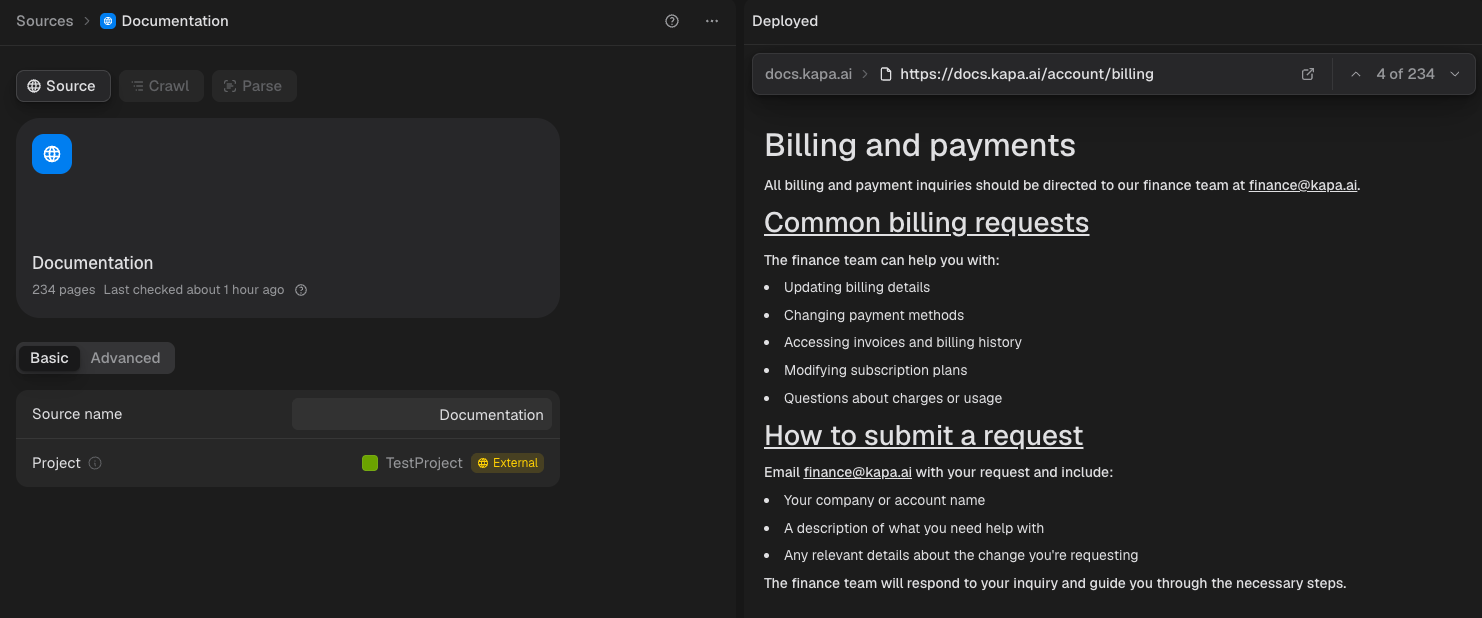
Selecting a page shows its content exactly as indexed, which is what answers cite, with controls to step through the deployed pages and to open the original URL.
Previews
When you open a source, the pane on the right shows its deployed pages, no matter whether the Source, Crawl, or Parse tab is active. As soon as you edit any configuration, the pane switches from the deployed pages to a preview: the place to test crawl and parse changes before deploying or re-deploying them.
The Preview action on the Crawl step fetches pages with the current configuration and shows the result in the Crawl preview pane; the Parse step then converts those same pages, so the parse configuration is previewed against them instantly, without re-crawling:
- The Included tab lists the pages that made it into the crawl, grouped by URL path.
- The Excluded tab lists every page that was left out, each with the reason (see Troubleshooting). It also lists links that were filtered out before download, for example by your URL patterns, so filters can be verified against real URLs.
Two guides walk through working with previews: Control which pages are crawled for the crawl side and Extract clean content for the parse side.
Previews are isolated: nothing a preview crawls or converts is published, and what you have deployed stays untouched until you Deploy or Re-deploy.
Preview crawls fetch real pages, so they count toward your plan's monthly crawled pages quota just like live crawls.
Refreshes
After deployment, Kapa re-crawls the site every 24 hours. Each page's content is compared against what is already indexed, at the markdown level, so purely cosmetic changes to the HTML are ignored. Only new, modified, and deleted pages are synced; unchanged pages, typically the vast majority, are skipped. If 45% or more of the pages changed or disappeared, nothing is synced and the update is held for review instead.
The 24 hour clock starts from the most recent crawl, whatever triggered it. A re-crawl can be triggered manually at any time with Refresh in the source's actions menu, for example right after publishing changes to your site; the next scheduled crawl then happens 24 hours later. No other source type can be refreshed manually; they all rely on their scheduled refreshes.
Reviews
Kapa judges every scheduled crawl before applying it. The reason is that your site keeps changing: a redesign or restructure is easy to ship without remembering the crawl that was configured against the old structure, and if Kapa just synced whatever such a crawl finds, it would break your deployed content. So:
- If 45% or more of a site's pages changed or disappeared during a refresh, nothing is applied and the crawl is held for human review.
- A comparable spike in new pages relative to existing ones is held the same way. It can be legitimate, for example a newly added section of your site, or it can indicate a restructure or a crawl configuration problem; either way, it is worth confirming before the pages go live.
Everyday edits touch a handful of pages and sync automatically. Trivial changes, such as reformatted dates or updated link targets with identical text, do not count toward these thresholds.
Reviews apply to refreshes of a deployed source, scheduled and manually triggered alike. Deploying a source for the first time and re-deploying after a configuration change always publish directly, without review.
The review dialog
A source with a pending review shows a Needs review badge in the Sources view; opening the source, or clicking Review on its row, shows the pending changes. Reviewing requires the edit sources permission.

The review dialog lists every affected page, grouped by URL path and labeled New, Modified, or Deleted. Selecting a page opens it for inspection: the Diff tab shows a line-by-line comparison of the deployed content against the newly crawled content, and the Staged and Deployed tabs show each version in full.
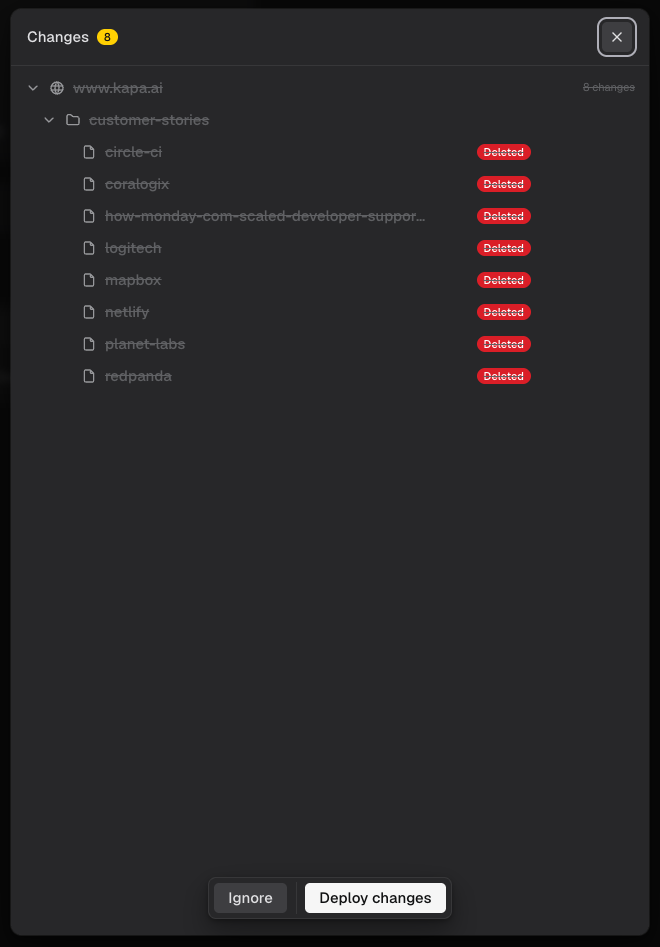
While inspecting, you are deciding between two situations:
- The changes are legitimate. You actually changed this much content since the last refresh. Click Deploy changes to publish the update; all listed changes are applied together, as the review covers the crawl as a whole, not individual pages.
- Something is not right. A change to your site moved a large part of your content, so it now shows up as deleted (as in the screenshot above), or introduced new elements that pollute a large share of the converted markdown. Do not deploy. Instead, fix the crawl and parse configuration (control which pages are crawled and extract clean content), then Re-deploy, which supersedes the pending changes.
Ignore just closes the dialog and does nothing: the changes stay pending and unpublished. The next scheduled crawl supersedes them and produces a new review if the situation persists.
Impact on your website
Crawls fetch your pages like any other HTTP client and will show up in your server logs and web analytics. Standard crawls identify themselves with the kapa.ai bot user agent, which you can filter on to exclude crawl traffic from your analytics. Crawls with Use proxy or Render JavaScript enabled are routed through rotating proxies and do not carry this user agent.
Limits
- A single crawl can ingest up to 100,000 pages. Crawls that exceed this fail with an error asking you to reduce the crawl scope.
- Crawled pages count toward your plan's monthly quota, including pages fetched by preview crawls.
- PDF files beyond a page limit are skipped; see PDF documents.
Troubleshooting
The Excluded tab of the crawl preview is the primary debugging tool: it lists every URL that was left out together with the reason.
| Reason | What it means and what to do |
|---|---|
| Outside included URLs | The URL did not match the crawl's scope. By default the scope is your start URLs; if you set Include URLs, it is your include patterns. Broaden the start URL or adjust the patterns. |
| Matches excluded URLs | The URL matched one of your Exclude URLs or Exclude URLs from download patterns. Check the patterns for overly broad matches. |
| Page unreachable | The page could not be downloaded: it was blocked, unreachable, or returned an error. If the site blocks automated traffic, enable Use proxy. |
| 401 / 403 | The site requires authentication or is blocking the crawler. Enabling Use proxy helps when the block is IP-based; pages behind a login cannot be crawled. |
| 404 Not Found | The page does not exist, usually a broken link on the site. |
| 429 Too Many Requests | The site is rate-limiting the crawler. Re-run the crawl later, or enable Use proxy to spread requests across rotating addresses. |
| Unsupported file type | The page is not HTML and its file type is not enabled. Enable Crawl PDF files if it is a PDF, or exclude the URL. |
These are the most common reasons; pages excluded by one of your own filters (extensions, minimum publish date, selectors) are labeled with the responsible option, and every reason carries its explanation in the preview itself.
Beyond the excluded list:
- No pages found at all: verify the start URL is reachable, and enable Render JavaScript if the site only shows content (and links) with JavaScript enabled. Without it, the crawler cannot discover links on such sites.
- Pages missing that exist on the site: if they are not linked from any crawled page, enable Crawl sitemap or add them as additional start URLs.
- Empty content after parsing: the content selector matched nothing on that page. Try a more general selector. Pages with no extractable content are skipped.
- Missing sections in the parsed content: the content selector is too narrow, or an exclusion is removing more than intended. Use the Raw tab in the parse preview to compare.
- Navigation, banners, or footers in the parsed content: add them to Exclude selectors or Exclude classes on the Parse step.
- Crawl takes too long: narrow the scope with URL patterns, and disable Render JavaScript unless the site requires it.