Quickstart
In this quickstart, you deploy the Kapa agent to your Discord server and ask it your first question.
By the end, you will have:
- The Kapa bot installed and enabled on your server.
- A channel where community members get grounded answers by mentioning the bot, or automatically in forum channels.
Before you start
Before you start, you should have:
- A Kapa project with indexed knowledge sources. If you have not done this yet, complete Index your first source first.
- Permission to edit the Kapa project; if buttons in the platform are greyed out, contact a team admin.
- The Administrator permission on your Discord server, required for the enable command at the end.
Decide where to deploy Kapa
Two choices shape the setup: the integration type, a single channel or the entire server, and which channels Kapa should answer in.
- For text channels, we recommend a dedicated channel, named something like
#ask-ai, rather than adding Kapa to an existing help channel: users should be able to tell channels where humans answer apart from channels where Kapa does. - If your community uses forum channels, deploying there with forum auto-reply mode answers every new post automatically.
If you are creating a new channel, create it now; you will need its channel ID during configuration.
Create the Discord integration
Navigate to the Integrations tab in the Kapa platform, click Add new integration, and choose Discord. Under Mode, pick Single Channel (bot is installed in a specific channel) or Global Server (bot is enabled for the entire server).
Configure the required options
-
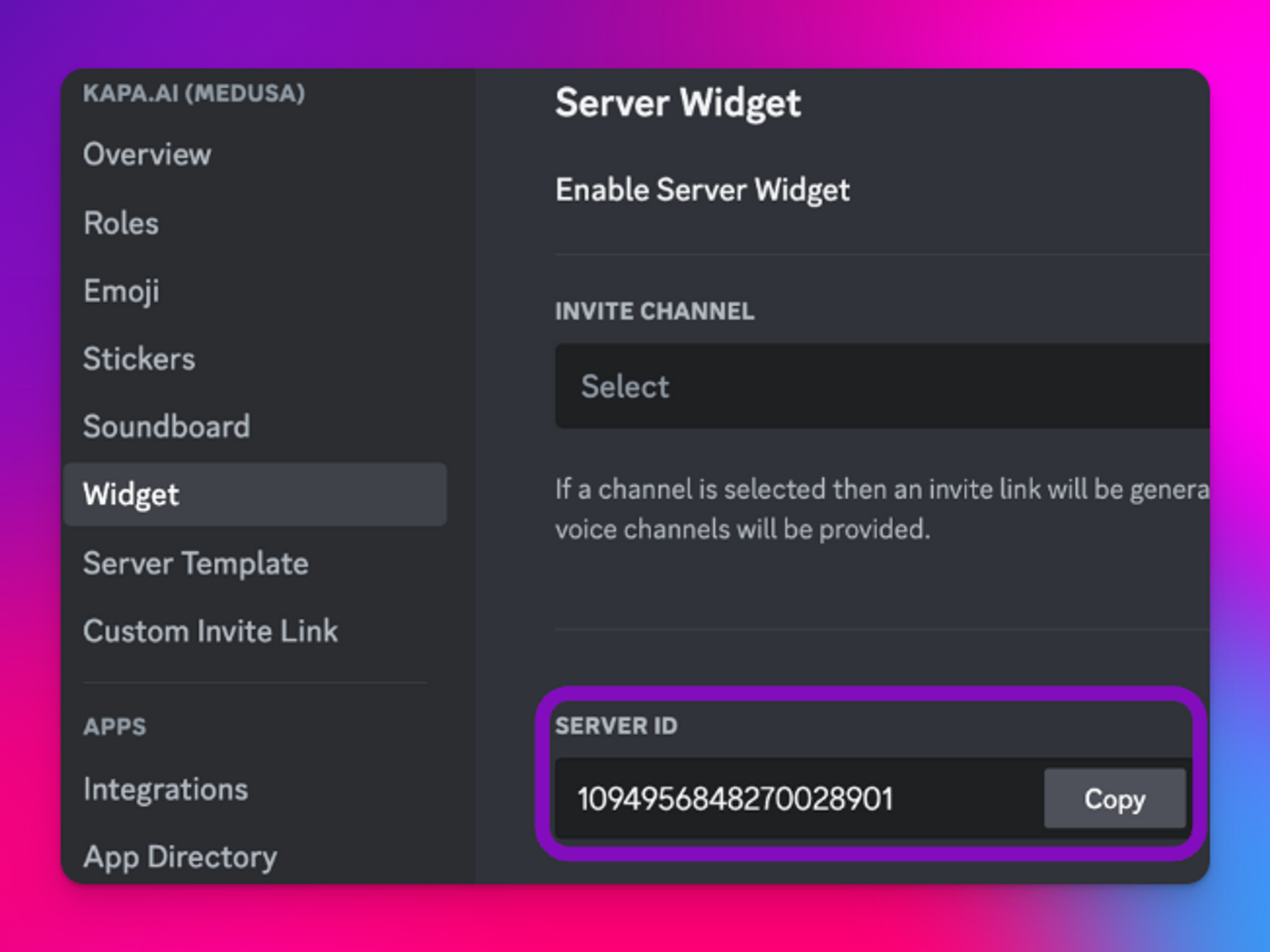
Discord guild ID: the identifier of your Discord server, required by both integration types. Find it under Server Settings > Widget > Server ID.
-
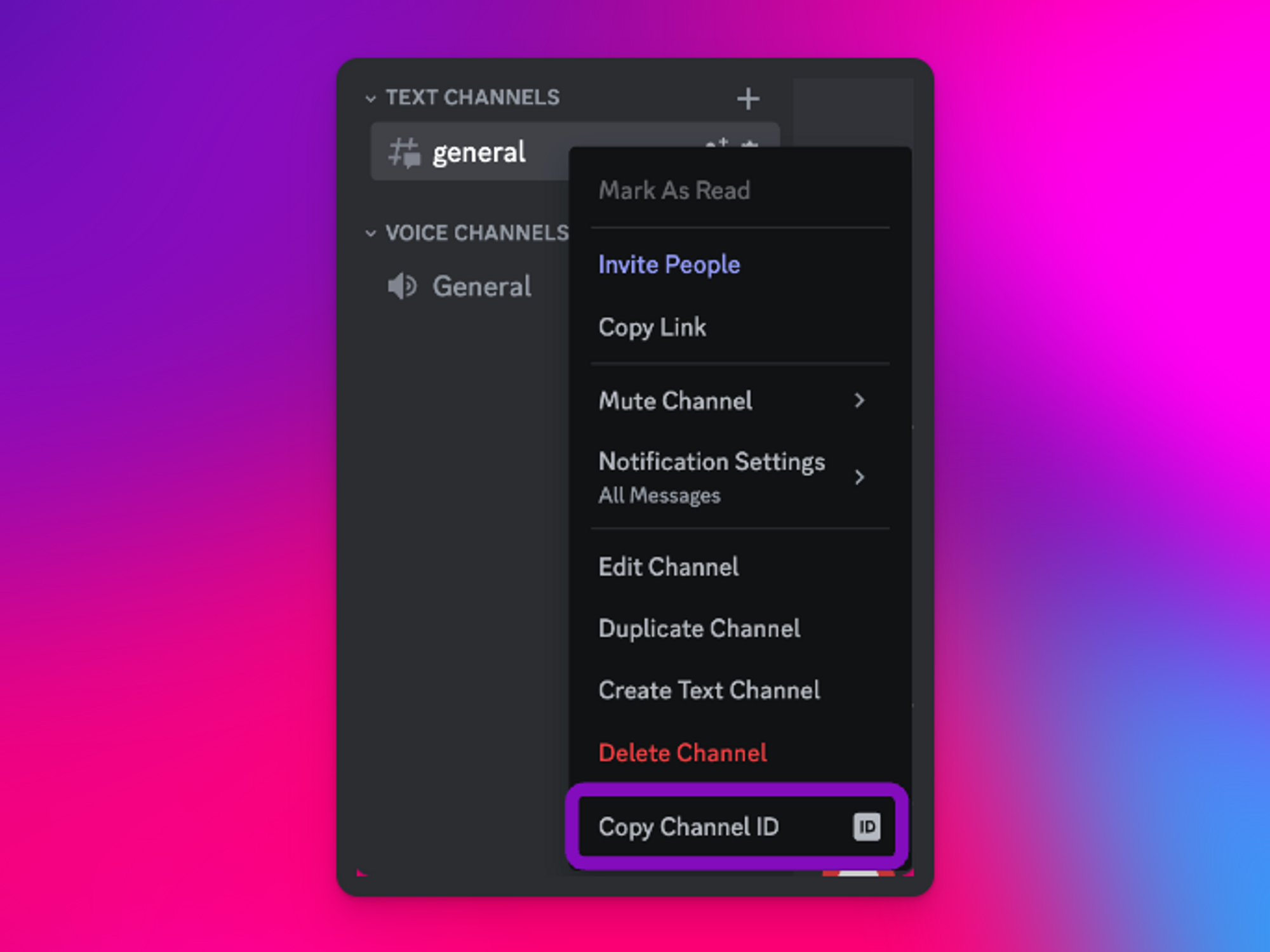
Discord channel ID: the channel where Kapa should respond, required only by the Single Channel type. Right-click the channel and select Copy Channel ID.
Everything else is optional and can be changed later; see Configuration. Click Save when you are done.
Install the bot to your server
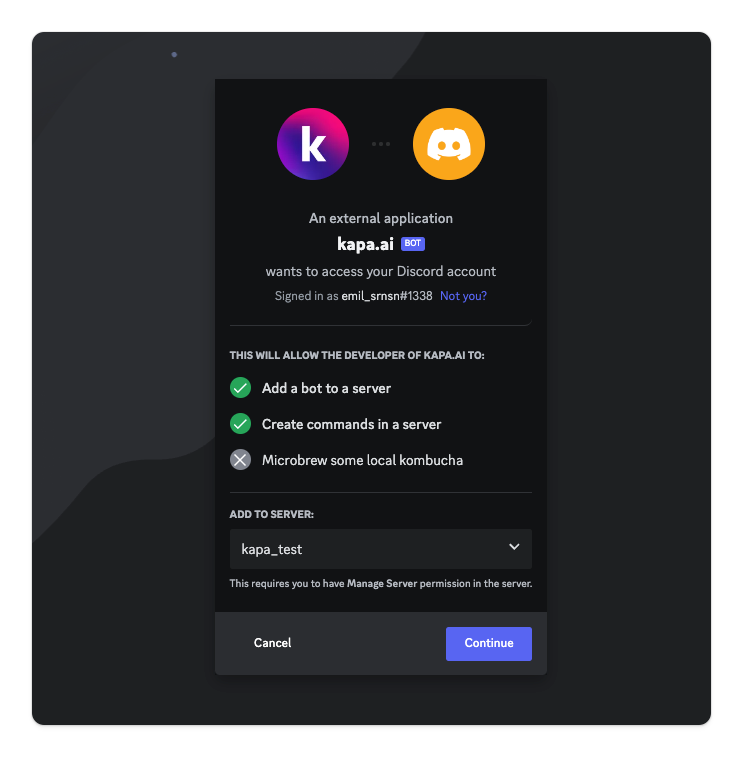
Install the bot on your server from the Discord Bot install link.
Enable the bot with a command
The final setup step confirms to the Kapa platform that you have authority over the server; the bot only accepts these commands from server administrators.
-
For a Single Channel integration, run this in the channel where the bot should respond:
!kapa_enable_channel <integration_id> -
For a Global Server integration, run this once from any channel on your server:
!kapa_enable_server <integration_id>
The <integration_id> is the ID of the integration you created; copy it with Copy Integration ID in the integrations table. The bot confirms in the channel once the integration is enabled. For a Global Server integration, make sure the bot is invited to the channels where you want to use it.
The command and the confirmation message are visible to everyone in the channel. Once the bot is enabled, you can delete both to keep the channel tidy.
Verify the installation
In an enabled channel, mention the Kapa bot with a question about your product. The bot replies with an answer grounded in your knowledge base. In a forum channel with forum auto-reply mode enabled, new posts get an answer without mentioning the bot.
Summary
You created and configured a Discord integration, installed the bot on your server, enabled it with an administrator command, and verified that it answers from your knowledge base.
Next steps
- Configuration: forum auto-reply mode, user tracking, and message customization.
- FAQ: what to check when the bot does not respond.
- Customizations: tune behavior and tone across integrations.