Make Intercom Fin better at handling large and complex knowledge bases
Intercom Fin answers your customers from the content in its Knowledge Hub. That works well up to a point. Past a certain scale and complexity, answer quality starts to deteriorate: answers mix up closely related content, and getting them right stops being a content problem and becomes an infrastructure problem, one of stronger indexing and retrieval.
Deeply technical software and hardware products are the classic example. Documentation grows to thousands of pages across several products and versions that share terminology, and that is exactly where the mix-ups happen: a version 2 answer to a version 3 question, or two similar products blended into one reply.
Kapa provides that infrastructure: connectors for the systems your knowledge lives in, refreshes that keep the index current, and agentic retrieval built for exactly this kind of knowledge base. In this tutorial, you connect a Kapa hosted MCP server to Fin as a Custom MCP data connector. Fin keeps running the conversation and searches your whole knowledge base through Kapa, answering with citations, without glue code and without a second copy of your content inside the Knowledge Hub.
If you would rather keep a human in the loop and have Kapa draft replies as internal notes instead of letting Fin call a knowledge tool itself, see Draft replies for your support team in Intercom Fin.
By the end of this tutorial, you will have:
- A Kapa hosted MCP server connected to Fin as a Custom MCP data connector.
- Kapa's search tool configured, tested, and set live, so Fin calls it autonomously during conversations.
- A tuned prompt that tells Fin when to search your knowledge base.
Before you start
You need:
- A Kapa project whose indexed knowledge sources contain the knowledge you want Fin to answer from. Everything the server exposes can end up in a customer reply, so it must be public knowledge only.
- A Fin workspace hosted in the US: Fin's MCP connectors are currently available for US-hosted workspaces only.
- Admin access on both sides: in Kapa to add an integration, and in Fin to manage data connectors.
Set up a hosted MCP server in Kapa
Kapa hosts the MCP server for you, so there is no infrastructure to stand up. Follow Set up the MCP server to create it, with one choice made for you: pick API key as the authentication type, which is what Fin's Custom MCP connector supports.
Then collect two things for the next section:
- Your MCP server URL, the full
https://<subdomain>.mcp.kapa.aiendpoint. - An API key: navigate to API Keys (under Deploy in the sidebar), click Add new API key, and copy the key. You hand it to Fin as a bearer token.
Add Kapa as a Custom MCP connector in Fin
- In Fin, go to Settings > Integrations > Data connectors. You will see a section for data connectors powered by MCP servers, with tiles for the templated integrations (Linear, Stripe, Shopify). Kapa does not have a template, so click the Custom MCP tile.
- Fill in the modal:
- Name: what this connector shows up as inside Fin, and how the agent refers to it internally, for example
Kapa Documentation. - URL: paste the Kapa MCP server URL from the previous section.
- Access token: paste your Kapa API key. Fin sends it as a bearer token on every call.
- Name: what this connector shows up as inside Fin, and how the agent refers to it internally, for example
- Click Add MCP Server. The connector appears in your list of data connectors with a
(0)next to it, meaning the server is connected but none of its tools are activated yet.
Do not leave Access token blank. Without a token, Fin tries to initiate an OAuth flow, which Kapa's API key server is not set up to handle.
Add the search tool
Kapa's MCP server exposes a search tool over your knowledge base, named search_<your_product>_knowledge_sources, where the product name comes from your Kapa project. This one tool is all Fin needs to retrieve context from your knowledge base.
- In your data connectors list, find the Kapa connector and click + New under it.
- Fin lists the available tools from the server. Click the
search_<your_product>_knowledge_sourcestool to add it to the connector. The counter next to the connector ticks up to(1).
Configure the tool
Adding the tool is not enough on its own: like every Fin data connector, you have to configure it and set it live. Click into the newly added tool (called something like "Search kapa knowledge sources") to open an editor with four numbered tabs: API, Data, Fin, and Security. The Save draft, Set live, and Fin preview buttons sit in the top right.
Most of the API tab is pre-filled from the MCP integration, which is the point of adding the tool from the connected server rather than wiring up a connector by hand. Walk through it anyway to confirm:
-
Description is an internal-only note describing the connector. Fin pre-populates it from Kapa's tool metadata. Leave it as is unless you want to nudge how your teammates think about it.
-
Data inputs defines what Fin collects from the conversation before calling the connector. Click + Data input and add the
queryparameter, the search string Fin sends to Kapa. Configure its source so Fin pulls it from conversation context rather than asking the customer outright. This is not optional. -
API endpoint is pre-filled with method POST and your Kapa MCP server URL. Check that the subdomain matches the one you set up earlier.
-
Body is pre-filled with a JSON-RPC payload that wraps Fin's
queryinput in the MCPtools/callenvelope, along the lines of:{"jsonrpc": "2.0","method": "tools/call","params": {"name": "search_<your_product>_knowledge_sources","arguments": { "query": "{{query}}" }}}You should not need to touch it unless you want to add
_metaparameters.
The remaining three tabs shape Fin's behavior:
- Data tells Fin how to interpret and surface what Kapa sends back. Be deliberate here: anything Fin reads from a tool response can end up in a customer reply, so review the chunks and decide which fields Fin is allowed to quote.
- Fin holds the Fin-specific controls, most importantly the toggle that lets Fin call the connector autonomously based on conversation context, rather than requiring it to be wired into a specific Workflow or Task. Turn this on for general-purpose knowledge search. The Prompt field in this tab controls when Fin decides to call the tool; the next section covers how to write it.
- Security stores the bearer token (your Kapa API key), alongside audience rules controlling which conversations the connector applies to. Disable Authenticate customers who match your authentication rules to make the tool available to all users.
Fin can only process one connector call per conversational turn. Kapa's server exposes one search tool and returns one consolidated response, so this is not usually a problem; be aware of it if you combine Kapa with other MCP connectors.
Write the prompt that routes questions to Kapa
The single biggest lever for how well this integration performs in production is the Prompt field on the Fin tab. That is the description Fin reads when deciding, mid-conversation, whether to call the Kapa connector or do something else. A vague prompt means Fin under-calls the tool and falls back to weaker answers; an over-eager prompt means Fin calls it for queries it cannot help with.
Fin pre-fills the field from the search tool's description, which Kapa's MCP server publishes as part of its tool metadata (the same text that Customize the MCP tools adjusts). That default is deliberately generic; you get better results by tailoring it:
- Lead with when to use the tool, not how it works. Fin does not need an essay on what semantic retrieval is; it needs to know which kinds of customer questions should trigger a call. Open with something like "Use this whenever the customer asks how to do something in [Product], how a feature works, what an error means, or how to integrate with the SDK or API."
- Name the product and concrete domains. Spell out your product name, your main features, your common terminology, and the surfaces your customers ask about: APIs, SDKs, dashboards, integrations. Fin uses these as anchors when matching customer phrasing to the tool.
- Describe what is in the knowledge base. "Documentation, API reference, SDK guides, tutorials, troubleshooting articles, changelog, and FAQ for [Product]" gives Fin more signal than "our documentation", and helps it avoid calling the tool for things that are clearly not in there.
- Disambiguate from your other connectors. If you run Kapa alongside Stripe, Linear, or other MCP connectors, add an explicit boundary: "Do not use this tool for billing, subscription, or account questions; those are handled by other connectors."
- Set expectations about output quality. Keep the line from Kapa's default that warns Fin about weak matches: "If the knowledge sources do not contain information relevant to the query, the returned chunks may be only weakly related or entirely unrelated." This nudges Fin not to over-trust low-relevance results and to escalate to a human when nothing relevant comes back.
- Keep it tight. Three to five sentences is usually the sweet spot; longer prompts dilute the signal Fin matches against.
Once you have drafted something, click Optimize below the prompt field: Fin rewrites it using its own internal best practices, and the result is usually a useful starting point even if you reject it. The first prompt you ship is rarely the one you run a month later, and that is fine.
When everything looks right, click Set live. The connector moves from Draft to Live, and Fin starts using it from that moment.
Turn on Fin for your channels
Setting the connector live wires it into Fin's reasoning, but Fin still needs to be deployed on a customer-facing surface to do anything with it. If you have not already turned on the Fin AI Agent for the channels you want it to handle (Messenger, email, WhatsApp, your help center), go to AI Agent > Fin in your settings and walk through the deployment flow for each channel. Fin's own documentation is the canonical reference.
Verify it works
- In the tool editor's API tab, use Test to run a Test live connection against the Kapa server. A successful response is a structured list of chunks with
source_urlandcontentfields. A 401 means the bearer token is wrong (fix it in the Security tab); empty results usually mean you are pointing at the wrong Kapa project or its knowledge sources have not finished indexing. - Click Fin preview and ask a handful of representative customer questions. Fin should recognize it can call the Kapa tool, query your knowledge base, and answer with grounded, cited context.
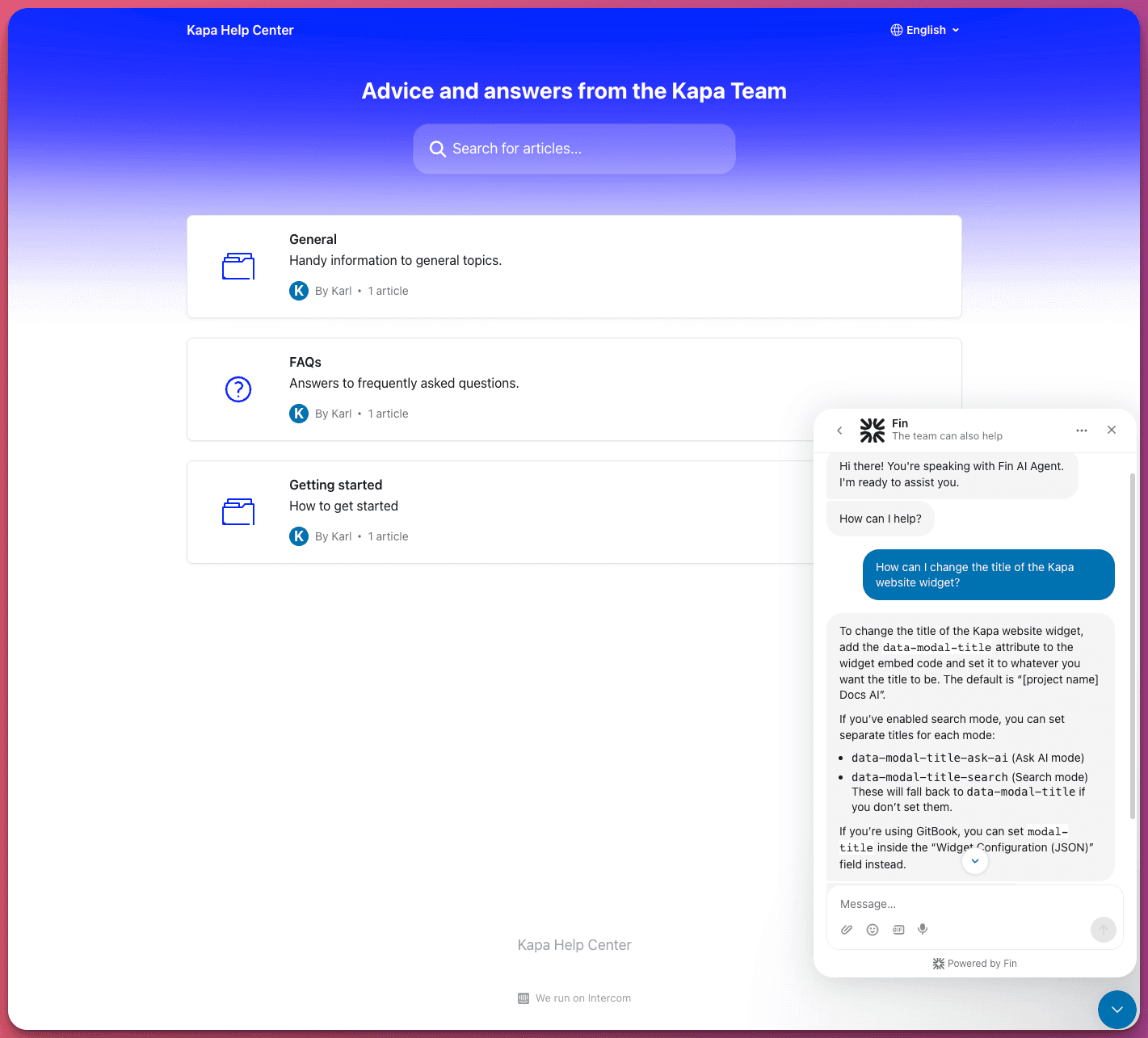
Once the connector is live and Fin is deployed on a channel, the loop is closed: a customer asks a question, Fin calls the Kapa tool, and the answer cites the sources it came from, alongside whatever other connectors and workflows you already run.
Summary
In this tutorial, you:
- Created a Kapa hosted MCP server with API key authentication.
- Connected it to Fin as a Custom MCP data connector and activated the search tool.
- Configured the tool's data inputs, behavior, and security, and wrote a prompt that tells Fin when to search your knowledge base.
- Verified the connection with a live test and the Fin preview.
Next steps
- Knowledge sources: everything you can index, from documentation and API references to tickets and community threads, to widen what Fin can answer.
- Use source groups: restrict the MCP server to a public subset of your knowledge sources.
- Draft replies for your support team in Intercom Fin: the complementary pattern, where Kapa drafts replies as internal notes for human agents instead.
- Fin's Custom MCP help article: the canonical reference on the Fin side.