Add knowledge base search to a LangChain agent
A LangChain agent can call your APIs, but it cannot answer questions about your product unless it can search your documentation. In this tutorial, you give it that ability. Kapa indexes your knowledge sources into one searchable knowledge base, and the LangChain package gives your agent search and document lookup over it as tools, alongside its native tools. The same pattern works in any agent framework that supports tool calling, with the hosted MCP server in place of the package. If you are building with the Kapa Agent SDK, knowledge base retrieval is already built in and you do not need this tutorial.
The goal is not a production-ready agent, but a working example of the pattern, with three parts:
- A reasoning model that decides what to do.
- Native tools that talk to your product, for example billing, teams, or settings.
- Kapa tools from the LangChain package, which search your knowledge base and read whole documents from it.
The example lives in the kapa-ai/langchain-agent-example repository. It uses LangChain's create_agent for orchestration and an OpenAI reasoning model, but you can swap in any model that supports tool calling.
By the end, you will have:
- A LangChain agent running locally, with your knowledge base available to it as tools.
- The agent combining product data from its native tools with information from your documentation in a single answer.
- A pattern you can transfer to your own product and stack.
Before you start
You need:
- A project with knowledge sources ready to search, for example from Index your first source.
- Permission to create an API key for that project in the Kapa platform.
- An OpenAI API key.
- Docker, or a local Python 3.10 or later environment.
Connect your project
- Open the Kapa platform and select your project.
- Open API Keys under Deploy in the sidebar and click Add API key.
- Enter a Name for the key and click Create.
- Copy the key with Copy private key.
- Open Settings > Projects and click Copy project ID next to your project.
The agent runs on your backend. Never expose the API key in client-side code.
Clone and run the example
-
Clone the repository and create your
.envfile:git clone https://github.com/kapa-ai/langchain-agent-example.gitcd langchain-agent-examplecp env.example .env -
Edit
.envwith your own values:OPENAI_API_KEY=sk-your-openai-api-keyKAPA_API_KEY=your-kapa-api-keyKAPA_PROJECT_ID=your-project-idPRODUCT_NAME=My Awesome Product -
Run the example:
- Run with Docker
- Run locally
docker compose run --rm agentThis opens a shell in the container. Inside it, start the agent:
python main.pypython -m venv venvsource venv/bin/activate # On Windows: venv\Scripts\activatepip install -r requirements.txtpython main.py
You should see a simple command-line chat for "My Awesome Product Assistant". Just before the prompt, a line confirms that the two Kapa tools loaded:
Loaded 2 tool(s) from the Kapa LangChain package:
  → search_knowledge_sources
  → get_knowledge_documents
Verify it works
Ask a few questions that hit different tools:
- "What plan am I on?" exercises the subscription tool.
- "Who is on my team?" exercises the team tool.
- "How do I set up webhooks?" exercises the Kapa search tool.
For simple questions, the agent usually calls a single tool and answers. For more complex questions, it combines several tool calls with reasoning in between. Here is a question that needs both product data and documentation in one answer, with the output shortened.
Example: mixing product data and documentation
You: We keep hitting 429 errors on webhooks. Are we on the wrong plan?

🧠 The agent thinks:
This involves both plan limits and the webhook docs. I should first see what
the documentation says about 429 errors on webhooks.

🔧 Calling tool: search_knowledge_sources
   query: webhook 429 rate limit
✓ Tool completed

📎 The docs say (chunk):
Source: https://docs.example.com/webhooks#rate-limits
"If you receive 429 responses for webhooks, you have exceeded your plan's rate limit.
Starter: 100 requests/minute
Pro: 300 requests/minute
Enterprise: 1000 requests/minute."

To know which limit applies, I need the user's subscription plan.

🔧 Calling tool: get_subscription_info
✓ Tool completed
   plan_name: Pro
   status: active
   seats_used: 8
   seats_total: 10

💬 Answer
You're on the **Pro** plan. According to the docs, Pro limits webhook deliveries
to **300 requests per minute**, and your recent volume is exceeding that.
You can batch or filter events, add backoff and retries, or move to a plan with
a higher limit.

Source: https://docs.example.com/webhooks#rate-limits
The agent searched the documentation first, checked the subscription to know which limit applies, and only then answered. The link it cites is the chunk's source link, exactly as search returned it. If the agent needs more than the chunk, it calls get_knowledge_documents with that same link to read the whole page.
Understand the pattern
The reasoning model receives a user query, thinks through what to do, and calls one or more tools:
get_subscription_infoandget_team_members: example native tools that read product data.search_knowledge_sources: Kapa's retrieval over your documentation and other knowledge sources, returning the most relevant chunks with their source links.get_knowledge_documents: whole-document lookup for when a chunk is not enough.
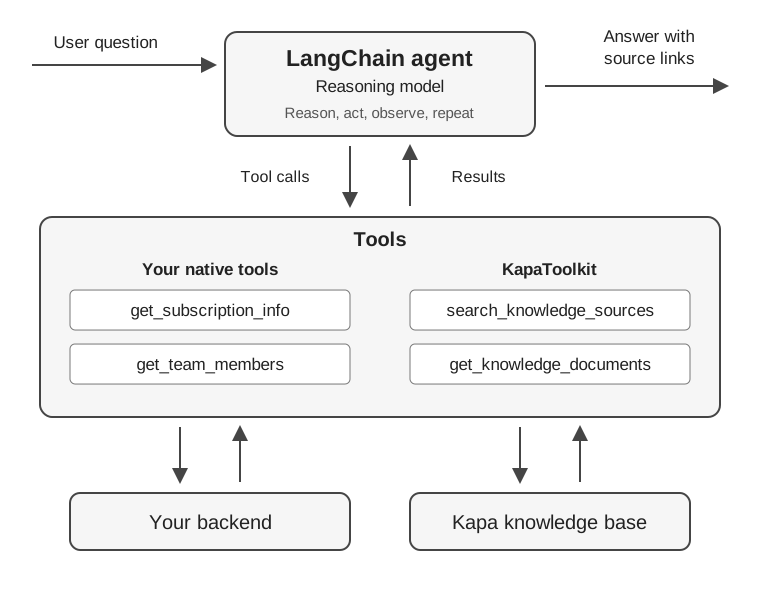
In the repository, the two native tools are mock tools that only simulate calling your backend. In your own product, these tools could do anything that makes sense: creating resources, running jobs, updating settings, querying analytics, or talking to any internal API or database.
The agent follows a ReAct loop (Reasoning and Acting):
- Reason. Analyze the situation and decide what to do next.
- Act. Call one or more tools.
- Observe. Read the results.
- Repeat. Go back to the first step if more information is needed.
- Respond. Answer once satisfied.
This loop is flexible: the agent can call one tool and respond immediately, or chain several tool calls with reasoning in between. It decides dynamically based on what it learns from each tool result.
The rest of this section walks through the code that makes this up, one piece at a time.
A native tool
The subscription tool in src/tools/subscription.py shows how a native tool is shaped. It is a plain function with LangChain's @tool decorator. The function name becomes the tool name, the docstring becomes the description the model reads, and the signature becomes the input schema. In production, it would call your real billing API instead of returning mock data:
from datetime import datetime, timedelta
from typing import Optional
from langchain_core.tools import tool
from pydantic import BaseModel, Field


class SubscriptionInfo(BaseModel):
    """Schema for subscription information."""

    plan_name: str = Field(description="Name of the subscription plan")
    status: str = Field(description="Current status of the subscription")
    seats_used: int = Field(description="Number of seats currently in use")
    seats_total: int = Field(description="Total seats available in the plan")
    billing_cycle: str = Field(description="Billing cycle (monthly/annual)")
    current_period_end: str = Field(description="End date of current billing period")
    monthly_price: float = Field(description="Monthly price in USD")
    features: list[str] = Field(description="List of features included in the plan")


MOCK_SUBSCRIPTION = SubscriptionInfo(
    plan_name="Pro",
    status="active",
    seats_used=8,
    seats_total=10,
    billing_cycle="annual",
    current_period_end=(datetime.now() + timedelta(days=45)).strftime("%Y-%m-%d"),
    monthly_price=49.99,
    features=[
        "Unlimited projects",
        "Advanced analytics",
        "Priority support",
        "Custom integrations",
        "API access",
        "SSO authentication",
    ]
)


@tool
def get_subscription_info(user_id: Optional[str] = None) -> str:
    """
    Get information about the current user's subscription plan.

    Use this when users ask about subscription, billing, plan features, or seat availability.
    """

    sub = MOCK_SUBSCRIPTION

    return f"""## Subscription Information

**Plan:** {sub.plan_name}
**Status:** {sub.status.capitalize()}

### Usage
- **Seats:** {sub.seats_used} / {sub.seats_total} used
- **Available seats:** {sub.seats_total - sub.seats_used}

### Billing
- **Cycle:** {sub.billing_cycle.capitalize()}
- **Price:** ${sub.monthly_price}/month (${sub.monthly_price * 12:.2f}/year)
- **Current period ends:** {sub.current_period_end}

### Included Features
{chr(10).join(f'- {feature}' for feature in sub.features)}
"""
The team tool in src/tools/team.py follows the same shape, with filters for role and department and a flag for inactive members as its arguments.
The Kapa tools
The Kapa tools come from the langchain-kapa-ai package, which the example's requirements.txt installs. On your own project, install it with pip install langchain-kapa-ai.
KapaToolkit gives the agent its two knowledge tools from one set of settings. It reads KAPA_API_KEY and KAPA_PROJECT_ID from the environment when you do not pass them. Both tools are regular LangChain tools, so they sit in the same list as your native tools:
from langchain_kapa_ai import KapaToolkit

kapa_tools = KapaToolkit().get_tools()
The toolkit also accepts every retriever and document tool setting, for example source_group_ids to restrict both tools to some of your sources, or mode="deep" for more thorough search. The reference lists them.
The agent
create_in_product_agent in src/agent.py puts the model, the native tools, and the Kapa tools together:
import os

from langchain.agents import create_agent
from langchain_kapa_ai import KapaToolkit
from langchain_openai import ChatOpenAI

from src.tools import get_subscription_info, get_team_members

SYSTEM_PROMPT_TEMPLATE = """You are an intelligent assistant embedded in {product_name}.

You have access to four tools:

- `get_subscription_info`: Use this when users ask about their plan, billing, pricing, seat limits...
- `get_team_members`: Use this when users ask about who is on their team, roles, permissions...
- `search_knowledge_sources`: Use this for ANY questions about how to use {product_name}...
- `get_knowledge_documents`: Use this when a search chunk is not enough and you need the whole page
  it came from. Pass the chunk's source link exactly as search returned it.

... (guidelines omitted for brevity) ...
"""


def create_in_product_agent(
    kapa_api_key: str | None = None,
    kapa_project_id: str | None = None,
    product_name: str | None = None,
    model_name: str = "gpt-5.1",
):
    # Read config from env if not passed in
    kapa_api_key = kapa_api_key or os.getenv("KAPA_API_KEY")
    kapa_project_id = kapa_project_id or os.getenv("KAPA_PROJECT_ID")
    product_name = product_name or os.getenv("PRODUCT_NAME", "<Your Product>")

    if not kapa_api_key or not kapa_project_id:
        raise ValueError("KAPA_API_KEY and KAPA_PROJECT_ID must be set.")

    # 1) Start with native tools
    tools = [get_subscription_info, get_team_members]

    # 2) Add the Kapa tools: search and whole-document lookup
    kapa_tools = KapaToolkit(api_key=kapa_api_key, project_id=kapa_project_id).get_tools()
    tools.extend(kapa_tools)

    print(f"Loaded {len(kapa_tools)} tool(s) from the Kapa LangChain package:")
    for tool in kapa_tools:
        print(f"  → {tool.name}")
    print()

    # 3) Build the system prompt with your product name
    system_prompt = SYSTEM_PROMPT_TEMPLATE.format(product_name=product_name)

    # 4) Configure the reasoning model
    model = ChatOpenAI(
        model=model_name,
        reasoning={
            "effort": "medium",
            "summary": "detailed",
        },
    )

    # 5) Create the agent, which runs the ReAct loop for you
    agent = create_agent(
        model=model,
        tools=tools,
        system_prompt=system_prompt,
    )

    return agent
- The system prompt guides the agent's behavior: search before answering product questions, cite the links, and admit when the documentation does not cover a question. Prompt your agent for grounded answers explains why these instructions matter.
toolscombines your native tools and the two Kapa tools. The model sees all four and chooses among them.create_agenthandles the ReAct loop.run_agentinsrc/agent.pystreams the reasoning and tool calls to the terminal, andmain.pyruns it in a chat loop.
Adapt the pattern to your product
Once you have run the example and understand the flow, you can adapt it to your own stack.
Keep the pattern
The core idea stays the same:
- A reasoning model or agent framework, whether LangChain, another framework, or your own orchestration.
- Your native tools that talk to your backend.
- The Kapa tools for documentation and guides.
You can swap the model as long as it supports tool calling.
Replace and extend the example tools
The example tools (subscription.py, team.py) are placeholders that happen to read subscription and team data. In your product, replace or extend them with tools that:
- Read data, for example resources, runs, logs, or analytics.
- Change state, for example create dashboards, restart jobs, or update settings.
- Orchestrate workflows, for example trigger deployments or run reports.
Make sure you:
- Pass user and tenant context into tools: user IDs, organization IDs, permissions.
- Enforce authentication and authorization the same way you do in your normal APIs.
Embed the agent into your app
The example repository uses a command-line chat to keep things simple. In a real application, you will:
- Move the agent call into a backend endpoint.
- Send the user's message and context from your frontend.
- Stream the agent's response back into your in-product chat.
The Kapa tools do not change: they remain backend-only HTTP clients that call Kapa with your project API key.
Alternative: Kapa Agent SDK
If you want a ready-made frontend with streaming, custom tools, and human-in-the-loop approval out of the box, consider the Kapa Agent SDK. It provides a complete chat UI or headless hooks and handles the agent loop for you, with knowledge base retrieval built in. Use the LangChain package when you are building your own agent and need Kapa as one tool among many. Use the Agent SDK when you want Kapa to handle the full agent experience.
Summary
In this tutorial, you:
- Ran a LangChain agent that combines native tools with search and document lookup over your knowledge base.
- Connected it to your Kapa project with the LangChain package and watched it mix product data with documentation in one answer.
- Walked through the code that registers the Kapa tools alongside your own.
Next steps
- Reference: every setting, source URLs, document lookup, paging, and errors.
- Choose a retrieval mode: when to set
mode="deep". - Prompt your agent for grounded answers: tell the agent to say when it cannot answer and cite the sources it used.