Give your n8n agent access to your knowledge without a RAG pipeline
In this tutorial, you give an n8n AI Agent access to your knowledge through the Kapa AI node. The agent searches your documentation, help center, and other knowledge sources, then writes an answer from the results.
Using Kapa lets you skip building a retrieval-augmented generation (RAG) pipeline in n8n: a vector database, an embeddings node, a text splitter, and the ingestion workflows that keep them all in sync. There are no pgvector tables to create, no embedding model and dimensions to choose and keep identical on both sides, no chunking strategy to tune, no upserts or deduplication to script, and no re-embedding when your content changes. Indexing, refreshes, and retrieval quality are Kapa's job, and your canvas keeps only the agent.
By the end of this tutorial, you will have:
- The Kapa AI node installed and connected to your Kapa project.
- An AI Agent with your knowledge base connected as a tool.
- A working chat that answers questions from your connected sources.
Before you start
You need:
- An n8n instance, Cloud or self-hosted, version 2.9.0 or later.
- A Kapa project with knowledge sources ready to search and permission to create an API key.
- An API key for a chat model provider, for example OpenAI or Anthropic. The model must support tool calling.
Install the node
Installing community nodes requires an n8n owner or admin user. Once installed, the node is available to all users of the instance.
- In n8n, open a workflow and open the nodes panel with +.
- Search for Kapa AI and select it under More from the community.
- Click Install.
Create the workflow and agent
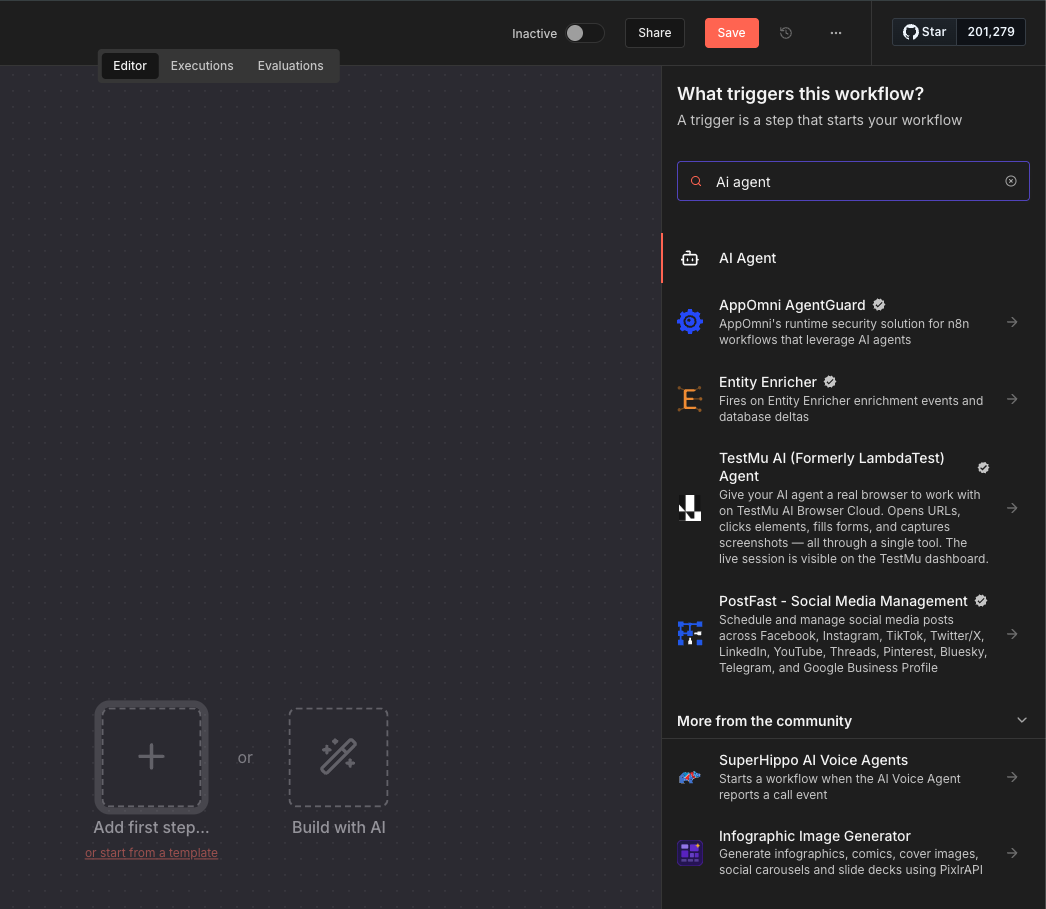
- Create a new workflow and click Add first step. Search for and select AI Agent. n8n adds the agent and a When chat message received trigger.
- Leave Source for Prompt (User Message) set to Connected Chat Trigger Node. The chat supplies the agent's prompt through
{{ $json.chatInput }}. - Click + on the agent's Tool connector, search for Kapa AI, and select Kapa AI Tool. Leave Resource on Knowledge Base and Operation on Search. n8n names the tool Search the knowledge base in Kapa AI.
Create a Kapa AI API credential
- Open the Kapa platform and select your project.
- Open API Keys under Deploy and click Add API key.
- Enter a Name, click Create, and copy the key with Copy private key.
- In the Kapa AI tool, click Connect to Kapa AI under Credential. If you already have a credential, use the credential selector to create or select one.
- Paste the key into API Key and click Save. n8n tests the key and shows Connection tested successfully.
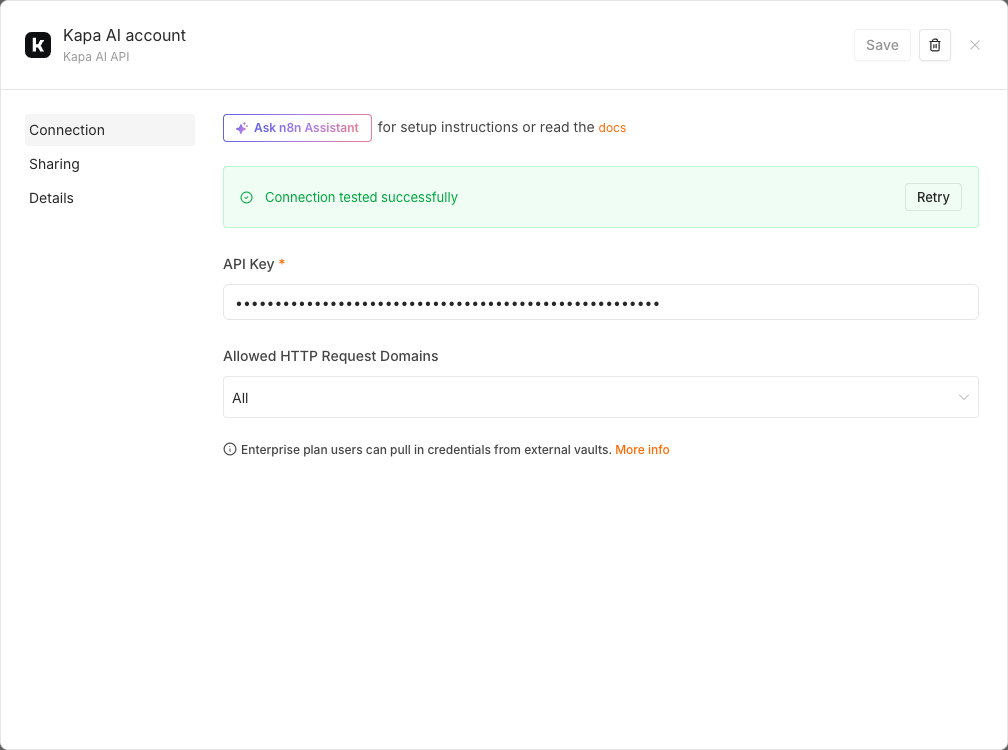
The credential stores only the key. You choose the project on each node that uses it.
Connect your knowledge base as a tool
- In the Kapa platform, open Settings > Projects and click Copy project ID next to your project.
- Paste the ID into the Kapa AI tool's Project ID. Keep this field fixed so the agent always searches that project.
- Next to Query, click Let the model define this parameter. The agent can now choose what to search for on each tool call.
- Leave Tool Description on Set Automatically. n8n describes the selected operation to the agent.
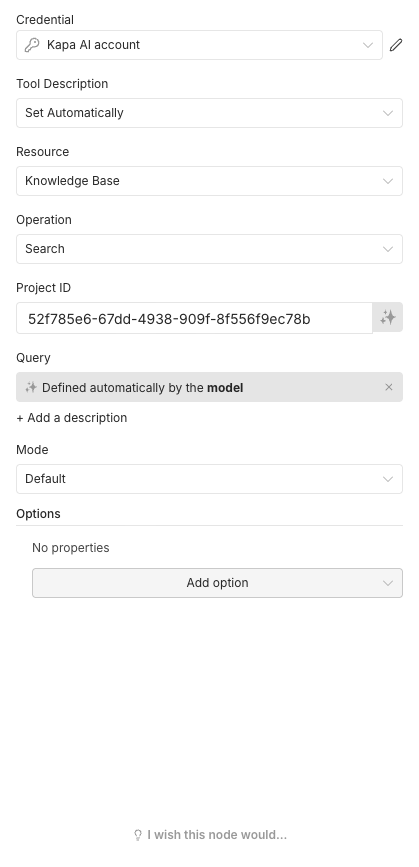
Search returns relevant text in content and source links in source_url. The agent uses those results to write its answer. The node reference covers the search settings and the Get Many Documents operation for fetching full documents.
Connect a chat model
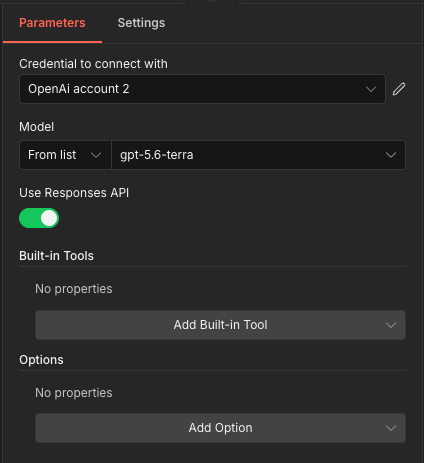
- Click + on the AI Agent's Chat Model connector and select your provider, for example Anthropic Chat Model.
- Select or create the provider credential, then choose a model that supports tools from Model.
-
Open the AI Agent. Under Options, add System Message and enter:
Search the knowledge base before answering questions about the product. Base your answer on the search results and cite their source links. If the knowledge base does not contain the answer, say so and do not guess.
The finished workflow
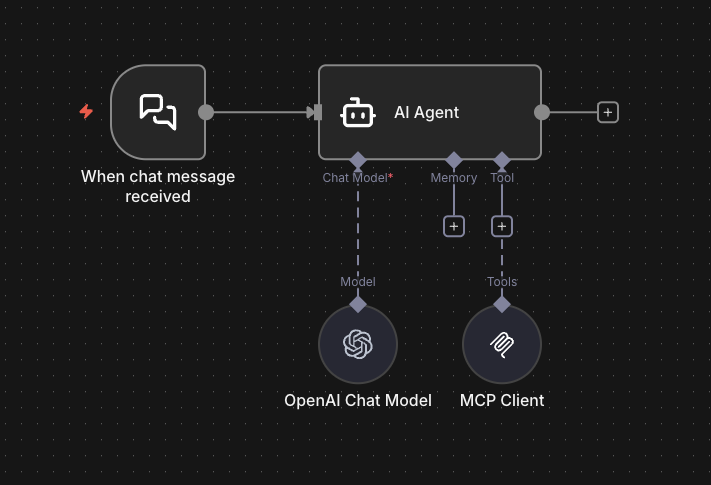
The chat trigger feeds the agent. The agent has two sub-nodes: the chat model and the Kapa AI search tool.
Verify it works
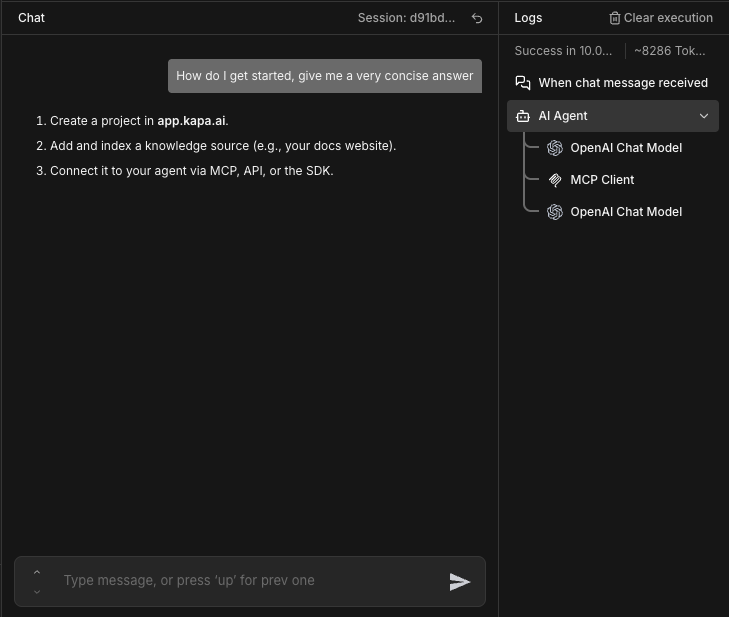
- Click Open chat at the bottom of the canvas and ask a question your knowledge sources can answer.
- Check the Logs panel for a call to Search the knowledge base in Kapa AI and the results it returns.
- Read the answer and open its source links. Confirm that the sources support it.
- Ask about something your sources do not cover. Confirm that the agent says it cannot answer from the knowledge base.
Summary
In this tutorial, you:
- Installed the Kapa AI node and created a credential for your project.
- Connected your knowledge base to an AI Agent as a search tool.
- Tested a chat workflow that answers from your knowledge sources and cites them.
Next steps
- n8n reference: both operations, authentication, and tool settings.
- Choose a retrieval mode: when to set Mode to
deep. - Prompt for grounded answers: guide how the agent uses results and acknowledges uncertainty.