Tuning knowledge base search for your agent
This guide is for teams that have an in-product agent with its own tools and have added Kapa's knowledge base search as a tool call, either via a Hosted MCP server or the HTTP API.
Teams typically do this because agents exposed to customers receive a significant share of questions that native tools alone cannot answer. Documentation retrieval addresses these gaps and makes the agent's existing tools more effective by giving it context about your product. Read more about why this matters in our research on knowledge base search in agents.
This guide covers the practical decisions you face once retrieval is connected: how many results to retrieve, how to keep context manageable, and how to prompt your agent for trustworthy answers.
Choosing how many results to retrieve
When your agent calls Kapa's retrieval, it receives a ranked list of text chunks, sections of documents from your knowledge base. There are two parameters that control how much content is returned:
max_chars: The maximum total characters across all returned chunks. Chunks are included in order of relevance until the limit is reached. Chunks are never truncated.top_k: The maximum number of chunks to return.
Both are enforced independently, so whichever is more restrictive takes effect. These are the main knobs you have for balancing retrieval quality against context size.
What is recall?
Recall is a common metric in machine learning that measures the fraction of relevant items that were retrieved. Here it measures how completely your retrieval results cover the information needed to answer a question. There are two useful ways to think about it:
- Chunk recall: Of all the relevant chunks in your knowledge base for a given question, what fraction ends up in the retrieval results? If a question has 5 relevant chunks and the retrieval returns 4 of them, chunk recall is 80%.
- Question recall: For what percentage of questions does the retrieval return every relevant chunk? This is a stricter measure. It tells you how often you get complete coverage.
High recall means the agent has the information it needs to give a complete, accurate answer. Low recall means the agent is working with partial information, which can lead to incomplete or wrong answers.
The tradeoff: recall versus context size
Retrieving more content improves recall, but there are real costs to returning too much. Each additional chunk increases the token count in your agent's context window, which means higher LLM costs and slightly higher latency. As the context grows larger, LLM reasoning quality degrades, a problem known as context rot, which can lead to worse answers even when the relevant information is present.
The key question is finding the right balance between retrieving enough context and keeping the overall context lean.
To help you pick the right values, we built a test set of thousands of real questions from across Kapa deployments. Each question is annotated, meaning for each question we know which chunks in the knowledge base are relevant to answering it. We then ran each question at different max_chars and top_k values and measured both chunk recall and question recall.
Controlling context with max_chars
The max_chars parameter caps the total character count across all returned chunks. This is the most effective way to control context size because it adapts to varying chunk lengths. Short chunks leave room for more results, while long chunks naturally reduce the count.
The left panel below shows chunk recall and question recall at different character limits. The right panel shows how many chunks are typically returned.
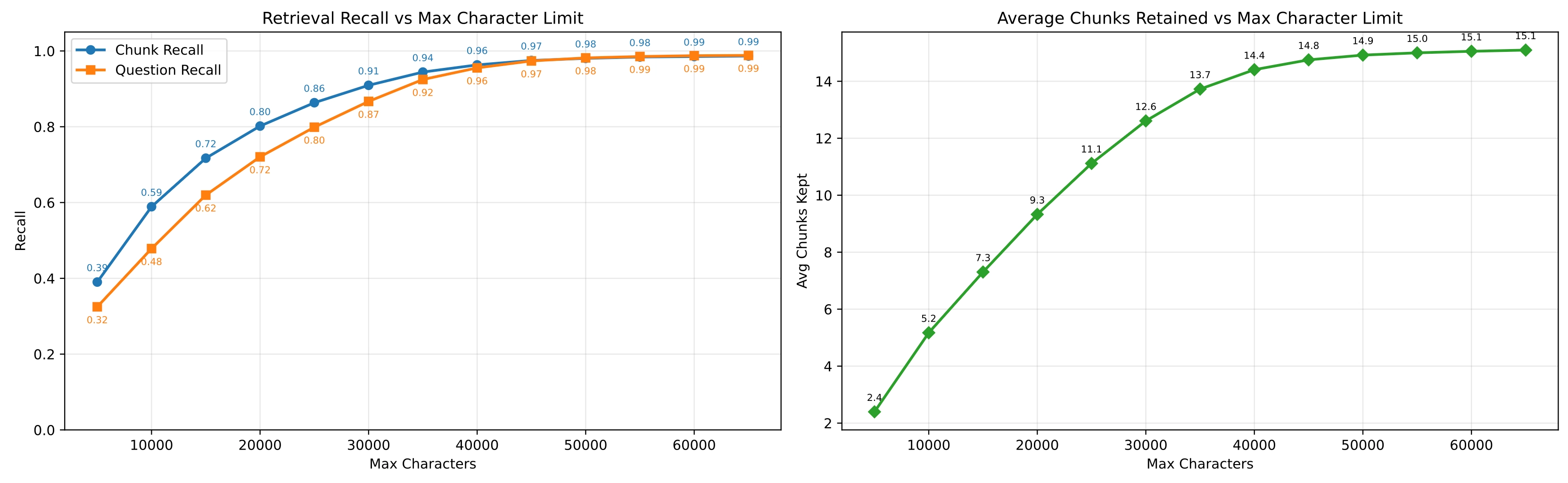
At a 35,000-character cap, recall is nearly as high as with no cap at all, while returning an average of 13.7 chunks per query. Below 15,000 characters, recall drops more steeply.
Controlling context with top_k
The top_k parameter simply caps the number of chunks. It is a blunter control than max_chars because it does not account for chunk size, but it is useful as an additional upper bound. The recall curve for top_k follows the same pattern of diminishing returns, flattening around K=12-13.
Recommendations
We recommend using max_chars as your primary control. The default of 35,000 is a good value for most deployments. There is little to be gained by going higher, as the recall curve is nearly flat beyond that point.
If your agent has a constrained context window and you need to reduce the amount of retrieved content, you can lower max_chars and use the curves above to understand the tradeoff you are making. Keep in mind that these curves are averaged across many Kapa deployments. Your specific project may look slightly different, but they are a good proxy for the general shape of the tradeoff.
Using a search sub-agent for context management
For most agents, consuming retrieval results directly in your main LLM is perfectly fine. However, as agents grow in complexity, with dozens or even hundreds of tools, sub-workflows, and large system prompts, it becomes impractical to do everything in a single agent. The context fills up with tool descriptions, tool results, conversation history, and instructions. In that environment, raw retrieval results competing for context space can be a problem.
A common pattern in these architectures is to delegate work to specialized sub-agents. Knowledge base search is a good candidate because it returns a lot of raw text. Instead of passing retrieval results directly into the main agent, you route them through a dedicated search sub-agent:
- The main agent receives a user question and decides it needs knowledge base information.
- It delegates to a search sub-agent with the specific question.
- The sub-agent calls Kapa's retrieval with a generous
max_charsvalue. - The sub-agent reads through the results, filters out irrelevant chunks, and returns the filtered chunks along with source URLs.
- The main agent incorporates this focused context into its response.
The sub-agent absorbs the cost of reading through raw chunks, and the main agent only sees the condensed result. This reduces how much context knowledge base search takes up in the main agent, which may already be bloated with other tool results and instructions.
Prompting for uncertainty and source citations
Two of the most important qualities of a knowledge-base-powered answer are expressing uncertainty when information is missing and citing sources so users can verify claims. These are behaviors that users value highly in out-of-the-box Kapa experiences like the widget, but they are not automatic when you build your own agent. You need to explicitly instruct your agent to produce them.
If you are using the Kapa Agent SDK, these behaviors are already built in. If you are building your own agent with the API or MCP, you will need to add this guidance yourself, in both the tool description and the system prompt.
We think this split applies to any tool: the tool description should tell the model what the tool does and what to expect back from it, while the system prompt should guide how to use the tool and how to handle its results. Here we show what this looks like for knowledge base search specifically.
Tool description
The tool name and description are where you set baseline expectations about what the tool does and what it returns. The name matters because it is the first signal the model uses when deciding which tool to call. If you are using a Kapa Hosted MCP server, both are already configured for you. The default tool name is search_[product_name]_knowledge_sources and the default description is:
Perform semantic retrieval over the documentation and other knowledge
sources of [Product Name] and return the most relevant chunks for a
given query. A "chunk" is a short, self-contained snippet of text taken
from a single page or item within these sources (for example, part of a
documentation page) and includes its source URL and markdown content.
Chunks are returned in descending order of relevance to the query. If
the knowledge sources do not contain information relevant to the query,
the returned chunks may be only weakly related or entirely unrelated.
Use this tool anytime you need information about [Product Name].
Notice that the description already enforces some of the behavior we want. It tells the model that results include source URLs and content, and critically, that chunks may be weakly related or entirely unrelated to the query. This primes the model to treat results with appropriate skepticism rather than assuming everything returned is relevant.
If you are building your own tool with the HTTP API, use a similar description. The important elements are: explain what the tool returns (chunks with source URLs and content), note that results may not always be relevant, and tell the model when to use it.
System prompt
The system prompt is where you get precise about how the agent should use the tool and handle its results. Below is what we think works well for handling uncertainty and citations. You can use it as a starting point or do your own thing entirely. Keep in mind that different LLMs will behave differently given the same set of instructions:
You are an AI assistant for [Product Name], [product description].

You have different tools to interact with the platform on behalf of the
user. You also have access to a knowledge base search tool to answer the
user's questions and fill in your own understanding of the product.

...your other instructions...

## Knowledge Base Search

Use the search_knowledge_base tool whenever you need information about
[Product Name], whether to answer a user's question directly, to
understand parts of the product in connection with the user's task, or
to interpret results and inputs from other tools. Never rely on your
inherent knowledge or any other tool for product-specific information.

When using the results, follow these rules:

1. Review the content of each knowledge source document carefully and
   assess its relevance to the user query before using it in your answer.
   Some documents may appear relevant at first but are not. If you do not
   find enough information in the knowledge sources to answer the query,
   clearly state that the knowledge sources do not contain enough
   information. Never try to make up an answer.
2. Answer the user query solely based on the relevant knowledge sources.
   Explicitly state your uncertainty with phrases like "I'm sorry, but
   there's no information about", "The knowledge sources do not explicitly
   mention" or similar, if you cannot find enough information in the
   knowledge sources to provide a confident answer. State your uncertainty
   at the beginning of your answer — the user must be made aware of any
   limitations upfront.
3. Cite documents that include a source URL. Format each citation as
   [[short title](URL)] using a 1-4 word title. Place the citation
   immediately after the sentence it supports. If two or more documents
   support the same sentence, include at most two citations inside the
   same brackets separated by a semicolon.