Zendesk Agent
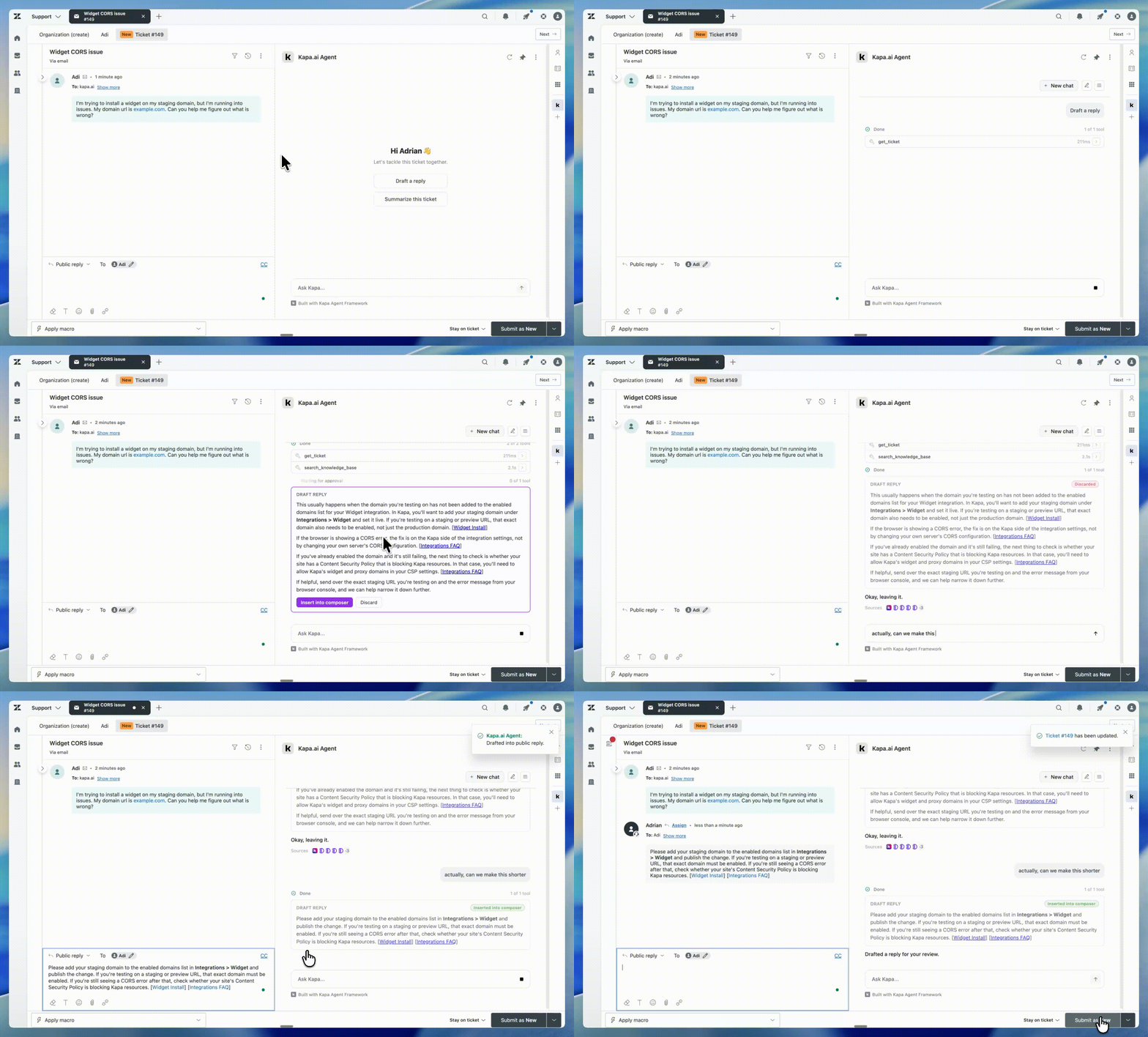
Kapa can be installed as a Zendesk Support sidebar app that puts a knowledge-base-grounded AI assistant next to every ticket. Support agents can ask follow-up questions, draft replies grounded in your connected documentation, and summarise tickets for handoff, all without leaving the Zendesk Agent Workspace.
The app is powered by the Kapa Agent SDK and the Zendesk Apps Framework. Drafts are staged into the Zendesk composer for human review before they reach the customer — the agent never clicks Submit.
Features
Instant Response Drafting
"Draft a reply" produces a polished, source-grounded response and shows it inline on a preview card. One click inserts it into the public-reply composer; another click discards it. Nothing reaches the customer until your agent hits Submit.
Ticket Summarisation
"Summarize this ticket" generates a handoff note (customer ask, recent messages, status, unresolved items) and stages it as an internal note for the next agent.
Connect Your Knowledge Base
Expand the depth of your customer support by connecting Kapa to an extensive array of knowledge resources. This can include Zendesk's Knowledge Base, past Zendesk Tickets, but also external documents and websites. See the full list of supported Data Sources.
Private vs Public Source Citations
If you've marked any of your connected data sources as containing internal data, Kapa treats them as private; everything else is public. The two visibilities are handled differently depending on where the assistant's output lands:
- Draft a reply (customer-facing): Kapa may still draw on private sources to inform the draft, but it omits any citation link pointing to a private source. Internal URLs should never reach the end customer. Public sources are cited as usual.
- Summarize this ticket and the agent's sidebar chat (internal): citations work normally for both private and public sources, since those surfaces stay inside the support team.
To mark a source as private, open it in the Sources section of the Kapa dashboard, and enable Mark contains internal data in the source settings.
Even with this filter in place, agents should review every draft and click through any citation link before clicking Submit. The private/public classification relies on how each source was tagged in the Kapa Dashboard, so the manual review is the final safety check before anything reaches the customer.
Full Ticket Context
The assistant reads the ticket you're on automatically — subject, status, priority, tags, the full comment thread, and the requester's recent ticket history — without you pasting anything.
Multilingual Support
Support customers in their native language. Kapa supports 20+ languages, including English, Spanish, French, German, Italian, Portuguese, Russian, Chinese, Japanese, Korean, and more.
Per-Seat Usage Tracking
Each agent's email and Zendesk user ID are passed to Kapa so analytics and entitlement work on a per-seat basis.
Assisted Ticket Tagging
Whenever a Kapa-generated draft or summary is inserted into the composer, the app adds an assisted_by_kapa tag to the ticket so you can track and report on Kapa-assisted tickets in Zendesk.
Requirements
- A Zendesk Suite Growth (or higher) or Support Professional plan with the Agent Workspace enabled
- A Kapa account with a Zendesk Agent integration (Dashboard → Integrations → Zendesk Agent)
Installation
The app is distributed as a Zendesk private app from the kapa-zendesk-agent-installation repository.
Step 1: Create a Zendesk Agent integration in Kapa
In the Kapa Dashboard, go to Integrations → Add new integration → Zendesk Agent. Copy the Integration ID that gets generated — you'll need it during configuration.
Step 2: Download the latest release
Grab the kapa-zendesk-agent-vX.Y.Z.zip asset from the Releases page.
Step 3: Upload as a private app
You'll need a Zendesk user with the Admin role to upload private apps.
In Zendesk, open Admin Center → Apps and Integrations → Zendesk Support Apps → Private Apps. Click Upload Private App, give it a name, and upload the .zip you downloaded.
Step 4: Configure the required parameters
After upload, Zendesk will prompt you to fill in the configuration parameters:
| Parameter | Secure | Required | Where to find it |
|---|---|---|---|
api_key | ✓ | ✓ | Kapa Dashboard → API Keys → Add new API key → Copy API key |
project_id | ✓ | Kapa Dashboard → User profile (bottom left) → Settings → Project → Copy project ID | |
integration_id | ✓ | Kapa Dashboard → Integrations → Zendesk Agent → Copy integration ID |
You can always edit your Kapa app settings later in the Zendesk Admin Center under Apps and integrations → Zendesk Support Apps — click the settings icon on the Kapa app and select Change Settings.
FAQ
What does the Zendesk Agent app read and store?
Per ticket session, the app reads the current ticket (subject, status, priority, tags, the full comment thread), the requester details and the requester's recent ticket history directly from Zendesk to ground the assistant's responses.
If you want the assistant to draw on your broader Zendesk ticket archive as a knowledge source, not just the current ticket, ingest it via the Zendesk Support Tickets data source integration.